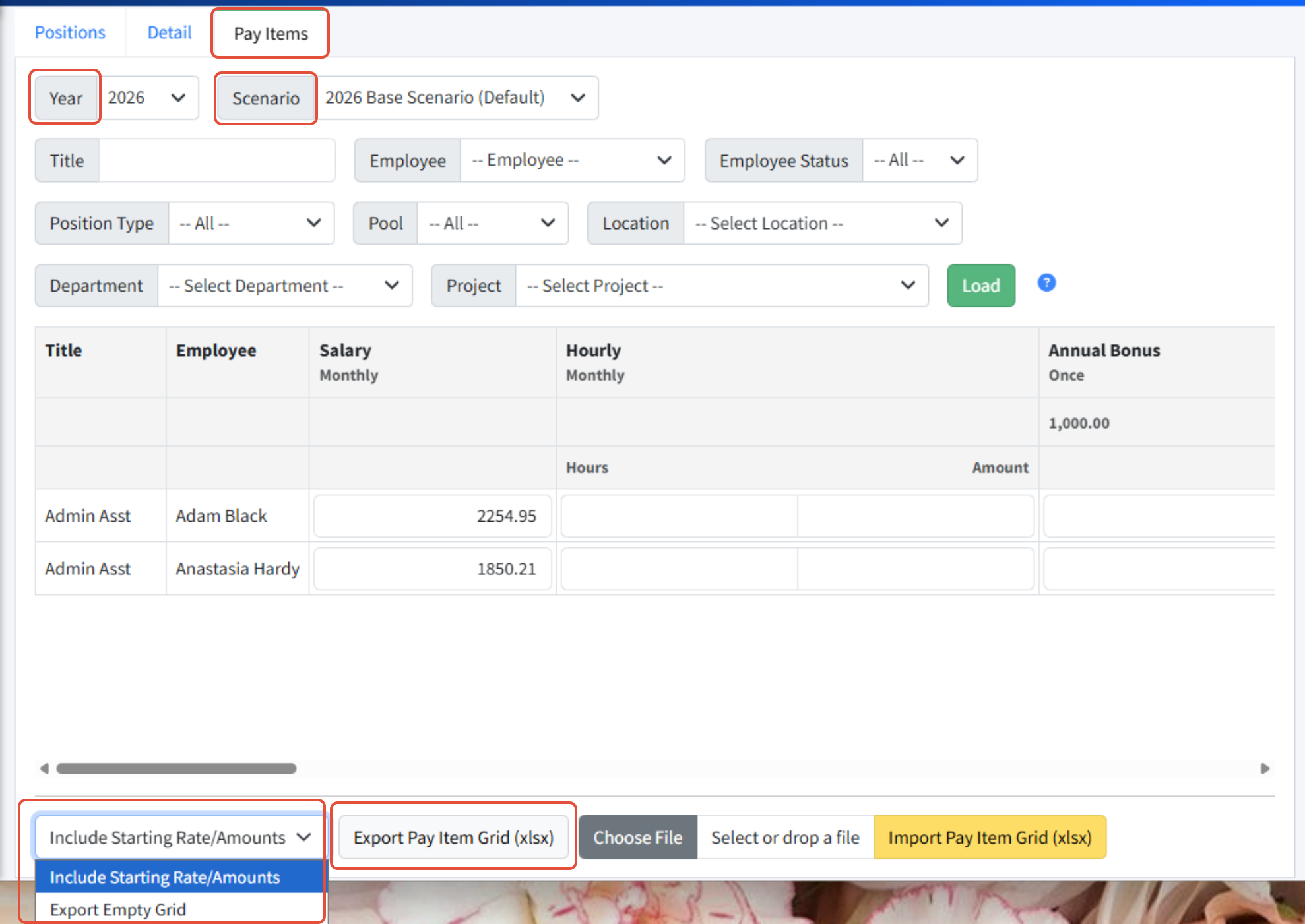
The Personnel Budgeting > Scenarios > Pay Items page displays one line per position in rows, with pay types in columns. You can update items directly on the screen or via the Pay Item Grid Excel export, which is formatted with one line per position in rows, and columns for each pay item.
Exporting the Pay Item Grid to Excel
- Go to Personnel Budgeting > Scenarios > Pay Items.
- Select the Year and Scenario.
- Choose whether or not to Include Starting Rates/Amounts (includes the values on the screen) or Export Empty Grid (includes no values).
- Click Export Pay Item Grid (xlsx).
Updating the Pay Item Grid in Excel
The first three columns in this file serve as reference for the positions in the scenario. Martus only supports changes to the pay type columns. Do not adjust the first three columns in this file and attempt to re-import, as these must match exactly what is currently in Martus.
- Position Name: This is for reference only; do not update.
- Title: This is for reference only; do not update.
- Employee: This is for reference only; do not update.
- Pay Type Columns: The columns following the first three columns will be dictated by the pay items that are set up within your system. Each customer will have a different set of columns. Navigate to Personnel Budgeting > Personnel Budgeting Setup > Pay Types to view the pay types' frequency, type, and any default values. The following are general rules for utilizing these columns:
- Hourly Pay Types: Enter the hourly rate (amount) for each position and the hours per pay period. If the position does not get the pay type, leave the cell blank.
- Salary Pay Types: Enter the rate using the frequency defined on the pay type (for example, Weekly, Bi-weekly, Semi-monthly, etc.). If the position does not get the pay type, leave the cell blank.
- Percentage Pay Types: Enter a 0 to use the default percent or enter the percentage that should be applied to that position if different from the default. Note: You can only overwrite the default percentage to be lower than the default. If the position does not get the pay type, leave the cell blank.
- Regular Pay Types: Enter a 0 to use the default amount set on the Pay Type in Martus or enter the appropriate amount based on the frequency of the Pay Type. If the position does not get the pay type, leave the cell blank.
- Tiered Pay Types: For pay types based on tiers, use the default amount by entering a 0 in the cell. If the position does not get the pay type, leave the cell blank.

Import Guidelines
- Martus will add new pay items or update existing pay items with the import file. Martus will not remove pay items even if they are removed from the Pay Item Grid.
- Do not adjust or remove the Position Name, Title, or Employee columns.
- Only enter a value or a 0 in cells where the position is associated with that pay type. If the position does not get the pay type, leave the cell completely blank.
Importing to Martus
- Go to Personnel Budgeting > Scenarios > Pay Items.
- Ensure the appropriate scenario is selected.
- Click Choose File to select the appropriate Excel file to import.
- Click Import Pay Item Grid (xlsx).
TIP! Recalculate the pay items on the Detail tab to populate the pay item rates if they are blank!
Use the links below to navigate through the learning path.
Pay Data File << Introduction to Personnel - Learning Path >> Allocations
Was this article helpful?
That’s Great!
Thank you for your feedback
Sorry! We couldn't be helpful
Thank you for your feedback
Feedback sent
We appreciate your effort and will try to fix the article