There are two options for importing new data and adjusting existing data in the Personnel module. The primary use for the Pay Data File export/import is to import and update employees, positions, and dimension assignments for the positions. Attached is an example Pay Data File with instructions on each tab.
Exporting the Pay Data File
The general process for updating the pay data file is as follows:
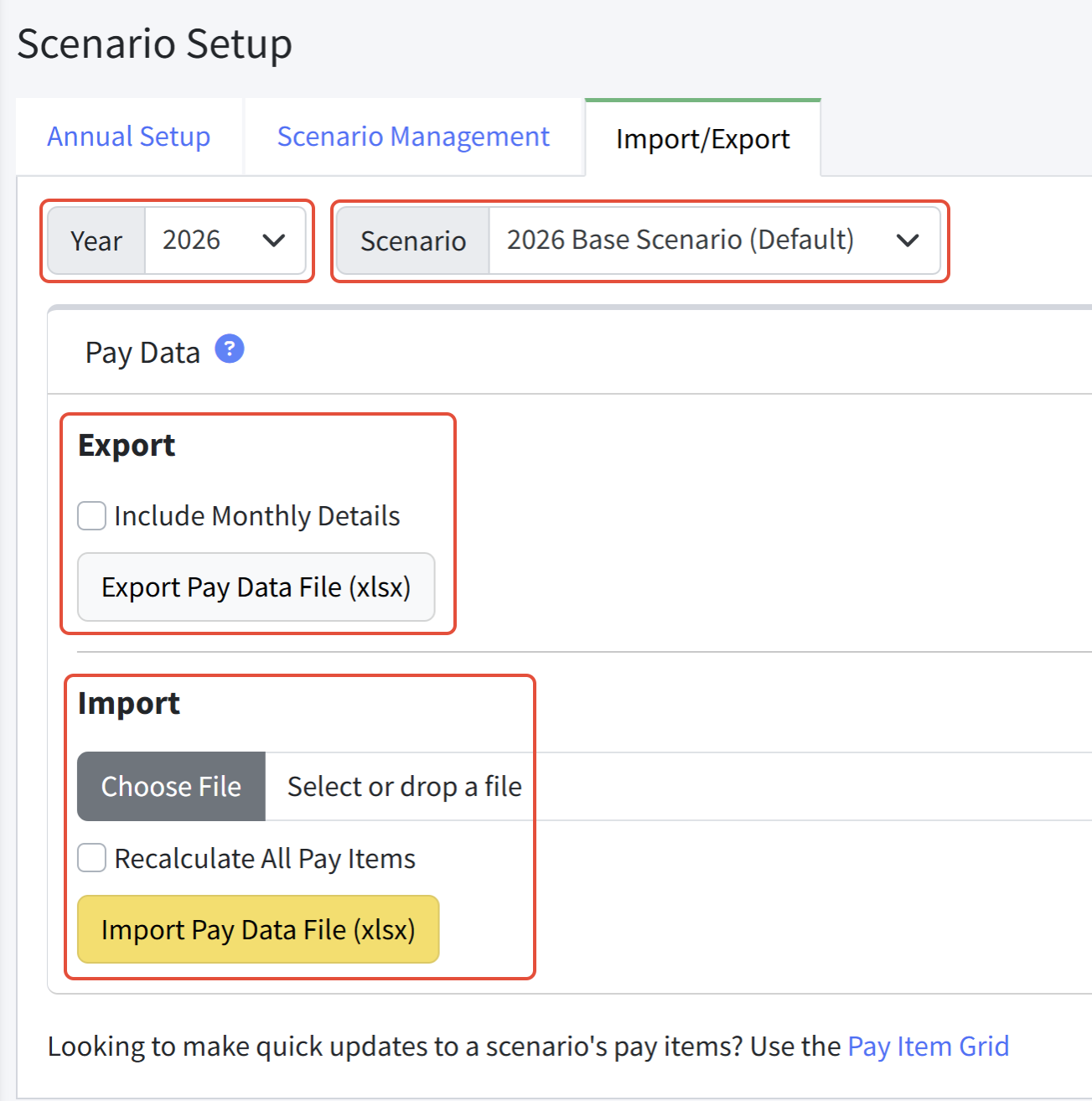
- Navigate to Personnel Budgeting > Scenario Setup > Import/Export.
- Choose the Year and the Scenario.
- Click Export Pay Data File (xlsx).
- Make changes to the Employees and Positions tabs. All other tabs should be ignored and/or deleted. (Coverages and Position Types can be used for reference if needed.)
- Import the pay data file back into Martus. First click Choose File, and then click Import Pay Data File (xlsx).
Additional options, very rarely used, include:
- Export > Include Monthly Details - Only choose to include monthly values if you've made mid-year updates to compensation or benefit rates and you want to view those details.
- Import > Recalculate All Pay Items - Select this to recalculate all pay items. This will override any mid-year rate changes such as a mid-year raise that you made using the Update Pay Item button on the Detail screen.
There is a sample file with detailed instructions at the bottom of this page that you can download.
Understanding the Pay Data File
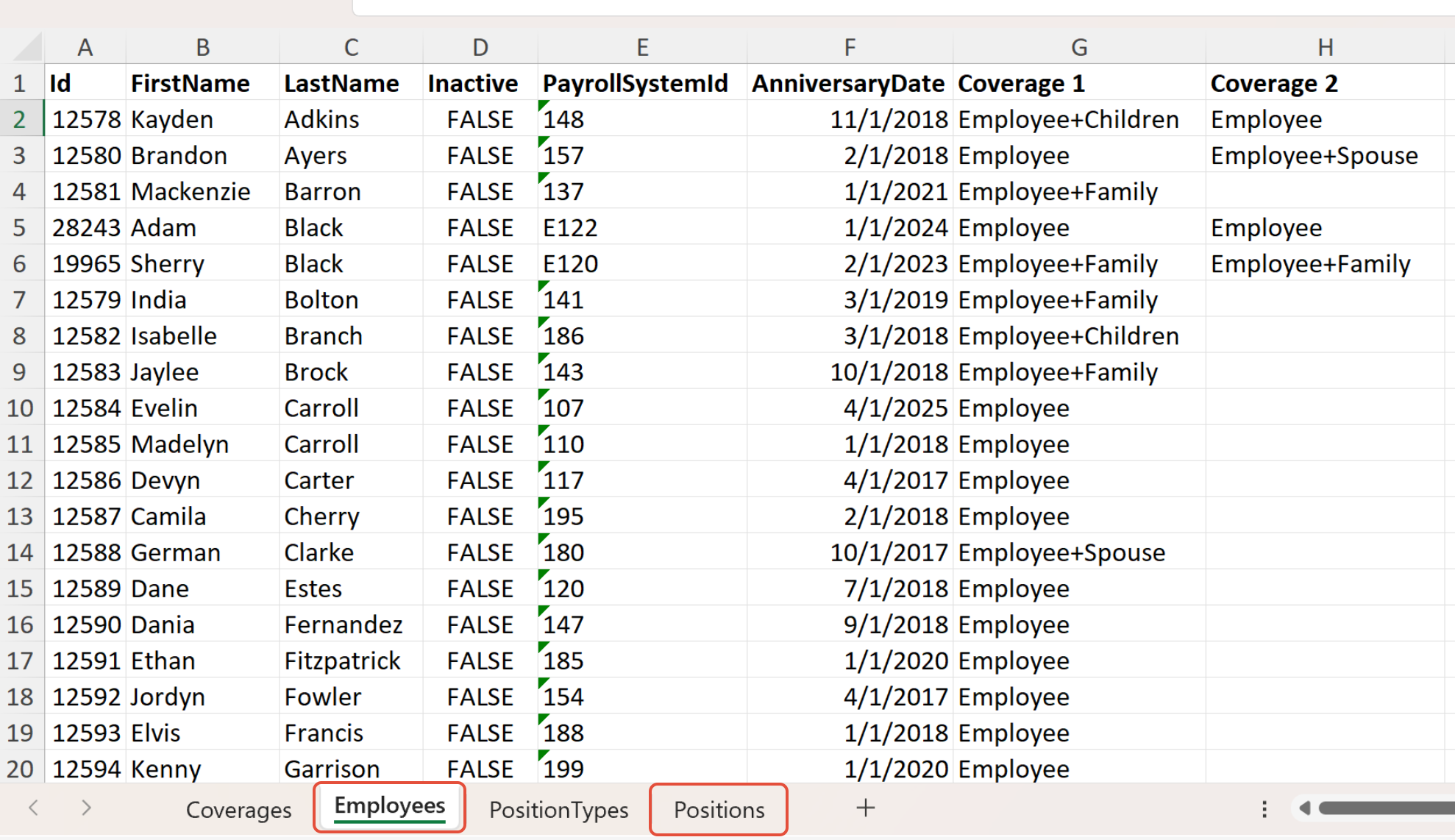
The Pay Data File contains numerous tabs. Martus recommends ONLY adjusting the following two tabs via the export and import process. Best practice is to ignore and/or delete the remaining tabs. (Coverages and Position Types can be used for reference if needed.)
Editing Employees
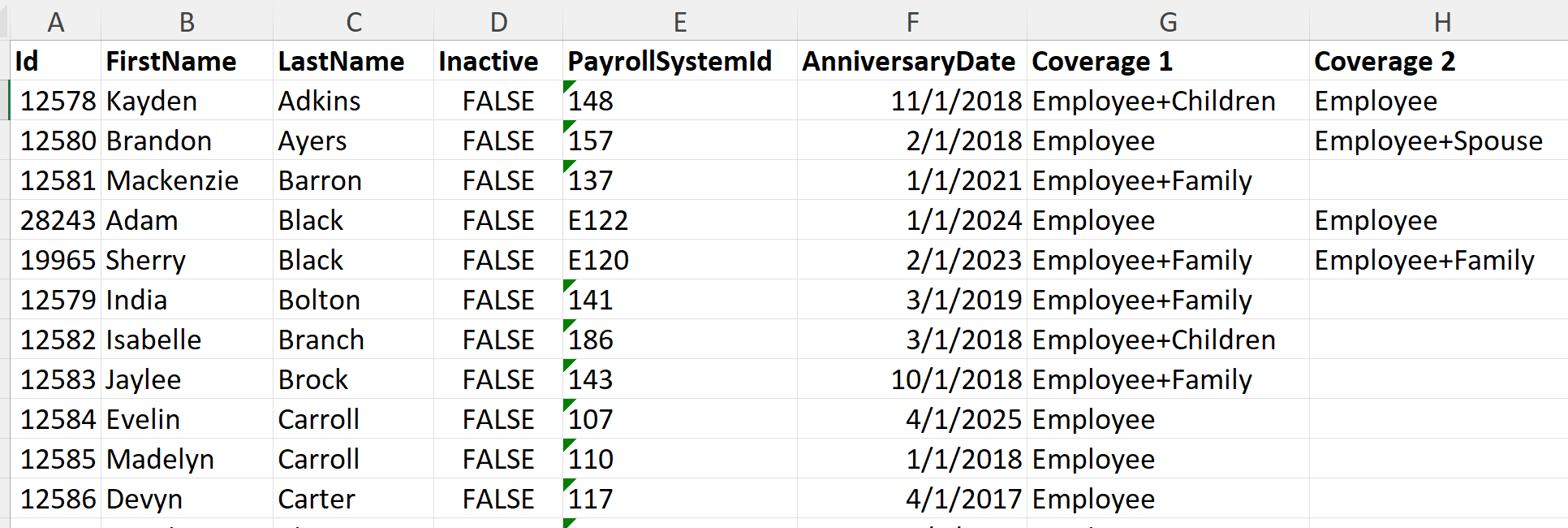
- Id: Martus assigns this ID when employees are added. Leave this column blank for new employees, or leave it as is for updating existing employees.
- FirstName: The first name of the employee.
- LastName: The last name of the employee.
- Inactive: The status of the employee. Update to TRUE for any employee no longer active with the organization. Otherwise, active employees should be labeled here as FALSE.
- PayrollSystemId: The ID that corresponds with the employee in the organization's payroll system. This allows for easier cross-referencing.
- AnniversaryDate: The date the employee began working with the organization. This date can be used to calculate bonuses or salary increases based on the employee's hire date.
- Coverage 1: The level of election within a tiered pay type; most commonly used for medical insurance.
- Coverage 2: The level of election within a tiered pay type; most commonly used for dental and vision insurance.
Notes for Import:
- The Coverage 1 and Coverage 2 values must match exactly (capitalization and spacing) to a value in the Coverages tab of the file.
- All columns must be included in the import; columns may be left blank, but do not rearrange columns or remove the column header.
- Spacing, punctuation, etc., must be exact in order for Martus to import the employees with matching positions. For example, "Mary" is not the same as "mary".
Editing Positions
- Id: Martus assigns this ID when positions are added. Leave this column blank for new positions, or leave it as is for updating existing positions.
- PositionName: Martus will assign this field using the title of the position. Leave this column blank for new positions, or leave it as is for updating existing positions. Note: Martus creates a unique value by appending a numeric value to the title, e.g., Assistant 1, Assistant 2, etc.
- Title: The job title of the position. Job titles do not need to be unique.
- PayrollSystemID: The payroll system ID for the employee
- EmployeeFirstName: The employee's first name.
- EmployeeLastName: The employee's last name.
Note: The PayrollSystemID, EmployeeFirstName and EmployeeLastName uniquely identify an employee in Martus.
- Type: The position type associated with this position. Copy values exactly as they appear on the PositionTypes tab in this file.
- IsTaxable: Default is TRUE. Set to FALSE for those who have opted out of paying taxes, normally associated with clergy.
- IsPool: Determines if this position is pooled or not. All pooled positions will multiply the FTE amount per each Pay Item assigned to this position. More information on Budgeting for Pooled Positions.
- StartDate: The date in which to begin budgeting for this position. Best practice is to enter the start date for seasonal positions or mid-year hires. Leave this blank for positions budgeted for all 12 months.
- EndDate: The date in which to stop budgeting for this position. Best practice is to enter the end date for seasonal positions or mid-year terminations. Leave this blank for positions budgeted for all 12 months.
- FullTimeEquivalent: Enter the FTE for this position - 1 for full time, .5 for half time, etc. This number will apply to the Allocation Analysis tab and the FTE Analysis tab. It is also used in conjunction with the IsPool field to calculate pooled positions.
- SheetDim1, SheetDim2, LineDim2,etc: The dimensions associated with this position. These will be unique for each Martus client. To confirm which dimension is SheetDim1, SheetDim2, etc., navigate in Martus to Setup > Dimensions and note the order of dimensions on the screen. SheetDim1 is first, SheetDim2 is second, etc.
- Note: Only add each position once. If a position will be allocated to multiple dimensions, those will be handled using the Allocation feature in Personnel.
- Note: Only add each position once. If a position will be allocated to multiple dimensions, those will be handled using the Allocation feature in Personnel.

Notes for Import:
- Excel formulas in fields that are to be imported will be replaced with the cell value. However, best practice is to copy and paste as values if needed. NOTE: ID fields and date fields do not support formulas.
- Ensure that the Employee names and the Payroll System ID are exact matches for those fields on the Employees tab.
- Ensure that the combination of sheet dimensions used in the Positions tab exist in the Planner Budget as budget worksheets. To determine this, go to Planner > Planner Setup > Worksheet Management tab and search for the appropriate worksheets. If the worksheet is missing, you will receive an error saying "Worksheet does not exist in the Planner Budget upon importing".
- Spacing, punctuation, etc., must be exact in order for Martus to import the employees with matching positions. For example, "Mary" is not the same as "mary".
Was this article helpful?
That’s Great!
Thank you for your feedback
Sorry! We couldn't be helpful
Thank you for your feedback
Feedback sent
We appreciate your effort and will try to fix the article