Martus software recognizes 3 types of users: Martus Super Admins, Martus Admins, and Martus non-admins. Martus Super Admins are employed by Martus and can do and see specific things in Martus instances as part of their role in implementing and supporting our clients that are hidden from all client users.
Martus Admins have access to everything in Martus - all functionality, and all data. Non-admin users in Martus have certain types of permissions granted via 3 areas. These areas work together, defining what a non-admin user has access to. Additionally, the Martus subscription impacts user access.
- Permissions - A user can have functional permissions - mostly related to the menu items in Martus - set on the User record or by the User Role associated with that user.
- Dimensions - A non-admin user may have dimension restrictions, which define what dimensions the user can see, also set on the User record. The Dimension tab is hidden for Admin users, as it is not applicable. Dimension restrictions are not in scope for this article, but more information can be found here.
- Accounts - Account restrictions are set in Setup > Accounts, and can be overridden on either the User record or by the User Role associated with the user.
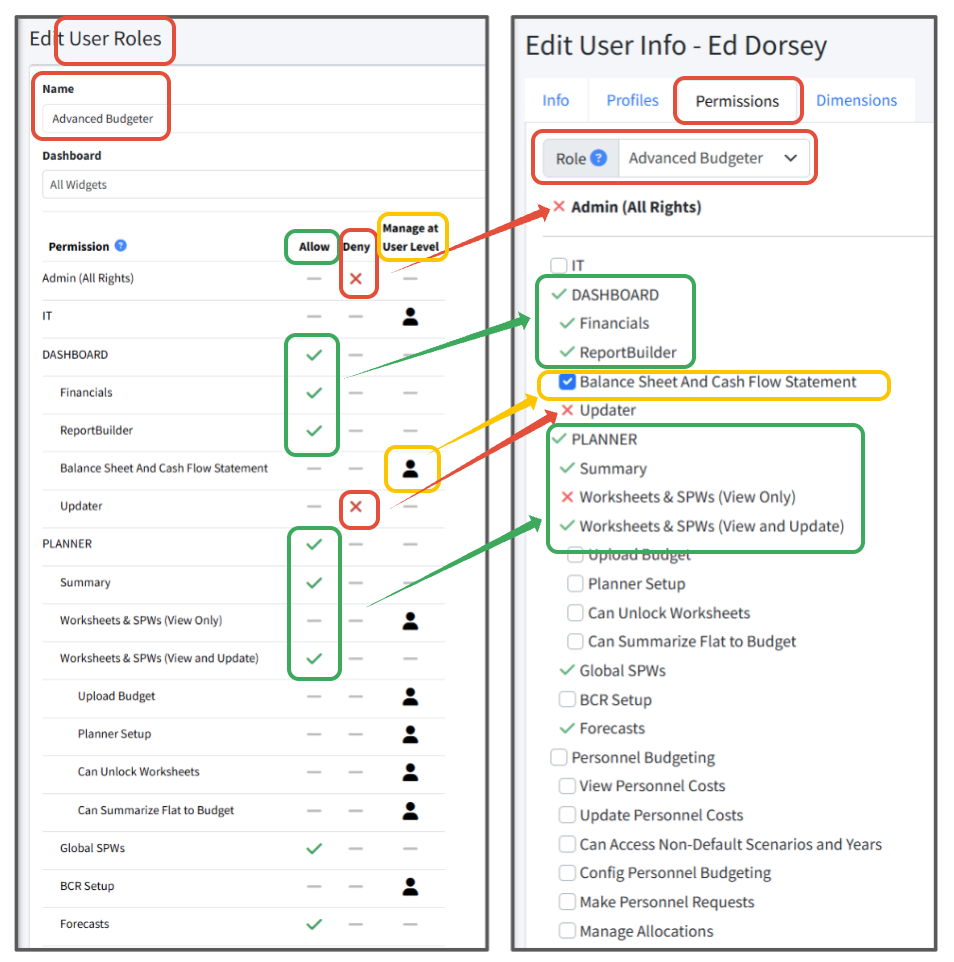
A User Role is applied to a User, setting the initial permissions. Where permitted, when Manage at User Level is set on the User Role, those permissions can be granted to a specific User. To manage User Roles, view this article.
Navigate to Setup > Users > Edit User > Permissions to see a user's overall permissions within Martus.
Allow, Deny, and Manage at User Level Settings
Allow - GREEN - Explicit Allow rights are granted through the role and cannot be changed.
Deny - RED - Explicit Deny rights are forbidden by the role cannot be changed.
Manage at User Level - YELLOW - Rights are managed at the user level and can be granted if desired.
Listing of All User Permission Options
Below is a list of all of the permission options available, by subscription, and how they behave when granted.
| Admin (All Rights Below) - Gives access to all of Martus - both the menu and data |
- Admin permissions will:
- Remove the ability to set dimensions restrictions, as these are not applicable
- Override any account settings, except Suppress Memo
- Grant access to all menu items, including Personnel Budgeting
- Grant access to the menu items in the Setup folder
- An Admin may work with Martus support to create an added layer of security for Personnel Budgeting that requires Admins to enter a password for access. Admins without the password are denied access.
- When an non-admin user is elevated to Admin or when Admin access is removed from a user, a notification will be sent to all Admins alerting them to this change.
|
IT - Available in all Martus subscriptions |
- The IT permission will grant the user access to Setup > SSO, in order to upload the needed certificate and set the login URL. It is best practice to assign the IT permission to a role in which all other permissions are denied, and then assign the role to specific users.
|
Dashboard - The top level must be selected to enable access to lower-level options |
|---|
|
- Financials - Access to Dashboard > Financials - Reports will be filtered by dimension restrictions set for the user.
- ReportBuilder** - Access to Dashboard > ReportBuilder - Users can edit reports they create, and view shared reports. All reports will be filtered by any dimension restrictions set for the user.
- Balance Sheet and Cash Flow Statement - Access to the Balance Sheet and Cash Flow Statement reports (Plus and Premium subscriptions only) NOTE: Non-admin user restrictions DO NOT apply to the Balance Sheet and Cash Flow Statement reports. They will see all dimensions and all accounts.
- Updater - Access to Dashboard > Updater - Users will be able to run the account, dimension, and actuals syncs on demand.
- Fund Balances - Access to the Fund Balances report (must be turned on by Support).
|
| Planner - The top level must be selected to enable access to lower-level options |
- Summary - Access to Planner > Summary - Reports will be filtered by dimension restrictions set for the user. Also allows a user to access Planner > Change Requests associated with BCRs (Budget Change Requests*).
- Worksheets & SPWs (View Only) - Access to Planner > Worksheets AND Planner > Special Purpose Worksheets - User will only be able to view Worksheets and Worksheet SPWs associated with their dimension restrictions.
- Worksheets & SPWs (View and Update) - Access to Planner > Worksheets AND Planner > Special Purpose Worksheets - User will only be able to view and/or edit Worksheets and Worksheet SPWs associated with their dimension restrictions.
- Upload Budget - Access to Planner > Intacct - Allows a non-admin user to upload a budget to Sage Intacct. Only the budget worksheets associated with their dimension restrictions are uploaded.
- Planner Setup - Access to Planner > Planner Setup > Worksheet Management tab only - Allows a user to add a worksheet associated with their dimension restrictions and assign Owners and Approvers, and set Targets. They can also add worksheets in Planner > Worksheets.
- Can Unlock Worksheets - Allows a user to unlock any worksheet associated with their dimension restrictions.
- Can Summarize Flat to Budget*** - Allows a user to summarize selected budget lines in a budget worksheet and apply Flat to Budget to the original budget line.
- Global SPWs - Access to any Global SPW that is only posting to dimensions associated with their dimension restrictions.
- BCR Setup* - Access to Planner > BCR Setup - Allows the user to manage BCR Setup including setting the default year and adding approvers.
- Change Request* - Any instance who has Budget Change Requests turned on and a user who has access to Worksheets & SPWs (View and Update) will have access to Change Requests.
- Forecasts** - Access to Planner > Forecasts - User will only see Forecasts they have created and the dimensions available will be filtered to their dimension restrictions.
|
Personnel Budgeting - Advanced Subscription |
- Personnel Budgeting - Grants the user access to all of Personnel Budgeting for clients with the Advanced Subscription. NOTE: Any dimension restrictions applied to non-admin users are ignored within the scenario.
NOTE: Only Admin users can post a personnel scenario to the planner budget!
|
Personnel Budgeting - Plus & Premium Subscriptions |
- View Personnel Costs - Access to Personnel Budgeting > Scenarios, Personnel Budgeting > Summary (Post to Budget), and Personnel Budgeting > Reports - Grants read-only access. Users will see any position associated with their dimension restrictions, and will only see the default year and scenario.
- Update Personnel Costs - Access to Personnel Budgeting > Scenarios, Personnel Budgeting > Summary (Post to Budget), and Personnel Budgeting > Reports - Edit access to all tabs. Users will see any position associated with their dimensions restrictions, and will only see the default year and Scenario.
- Can Access Non-Default Years and Scenarios - Use in conjunction with one of the above (view or update personnel costs) to allow the user to see non-default years and scenarios.
- Config Personnel Budgeting - Allows the user to see Personnel Budgeting > Personnel Budgeting Setup, Personnel Budgeting > Scenario Setup, and Personnel Budgeting > Allocations. (This option can be given without permission to View Personnel Costs or Update Personnel Costs.)
- Non-admins can edit allocations associated with their dimension restrictions and view compensation amounts.
- Non-admins can view allocations (by percent only) not associated with their dimension restrictions.
- Make Personnel Requests** - Access to Personnel > Personnel Requests - Allows the user to request positions associated with their dimension restrictions.
- Manage Allocations - Access to Personnel Budgeting > Allocations and Personnel Budgeting > Reports > Allocation Analysis only. Allows the user to manage all allocations segments for all positions by percentage.
- Show Compensation Amounts - Allows the user with Manage Allocations permissions to see the true compensation amounts for all allocation segments for all positions.
NOTE: Only Admin users can post a personnel scenario to the planner budget.
|
Additional Options |
- View Restricted Accounts - Allows a user to view accounts (Setup > Accounts) that are set to Restricted in reports and view them in Planner > Worksheets.
- Update Restricted Accounts - MUST also have "View Restricted Accounts" selected. Allows the user to view accounts (Setup > Accounts) that are set to Restricted in reports. Users can also update budget amounts for restricted accounts in Planner > Worksheets.
- View Drilldown Limited Accounts - Allows a user to view transactions for accounts (Setup > Accounts) that are set to Drilldown Limited.
- View Transaction Attachments*** - Allows a user to view all attachments on any accounts for which they have access.
- View and Update Excluded Data - Allows a user to view accounts (Setup > Accounts) that are set to Excluded in reports when they click on the "View Excluded" checkbox. Users can also update budget amounts for excluded accounts in Planner > Worksheets.
- Can View Non-Default Budgets - Allows a user to access additional non-default budgets in Planner > Planner Setup. These budgets may be set as Viewable or Editable.
|
*Feature available at an additional cost for those at the Standard+, Plus, and Premium levels
**Feature available at the Standard+, Plus, and Premium levels
***Sage Intacct, MS Dynamics Business Central, and Sylogist integration features
Users Learning Path: Review & Update Martus Users