The following are specific examples of changes that can be made on the Detail tab of Personnel Budgeting using the Custom Budget spread options and the steps to complete them.
To create a Custom Spread, see this article: Custom Budget Spreads
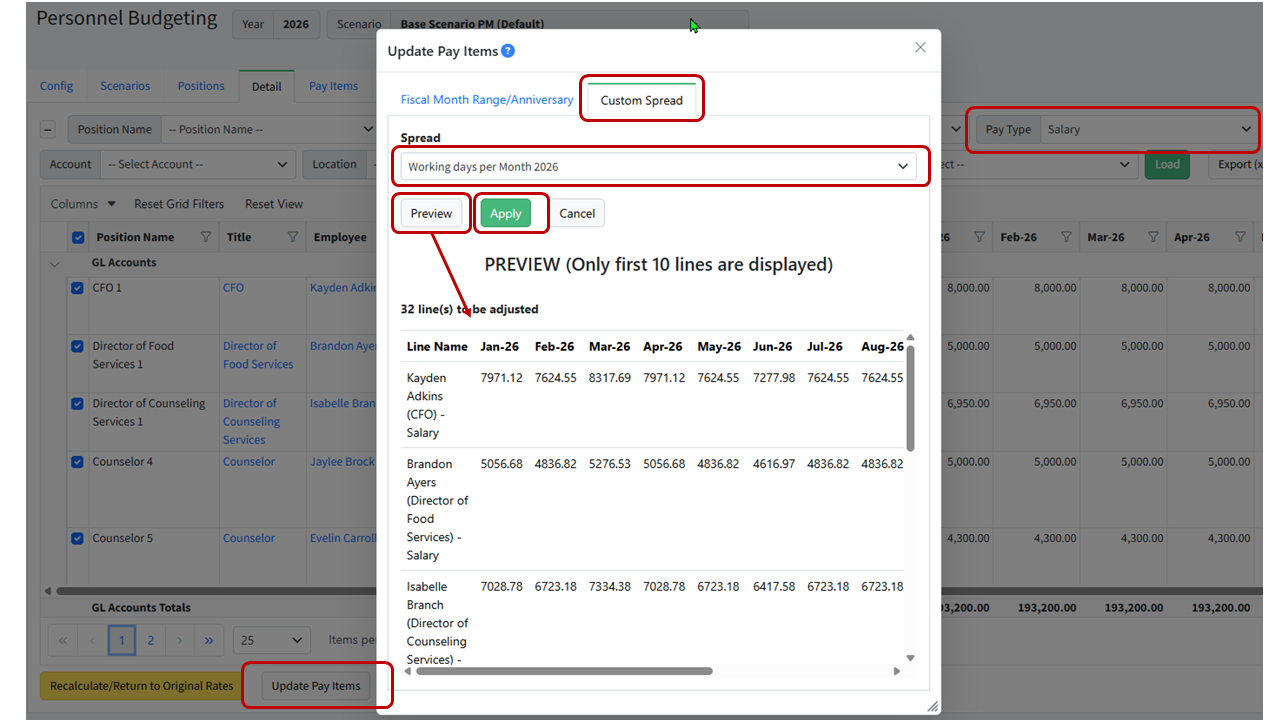
Example 1 - Allocate by working days per month
In this example, there is a need to apply a 3% COLA increase in July of the calendar year.
- Navigate to Setup > Calendar.
- Go to the Custom Spread tab.
- Add a spread with the working days per month.
- Navigate to Personnel Budgeting > Scenarios.
- Ensure the appropriate scenario is Selected or set as the Default.
- Go to the Detail tab.
- Filter to the appropriate pay items such as the hourly and/or salary pay items.
- Select all records.
- Click Update Pay Items.
- Click on the Custom Spread tab.
- Choose the appropriate spread from the dropdown.
- Click Preview to see the impact of the spread on the first 10 lines.
- Click Apply.
Example 2 - Adjust the number of pay periods per month
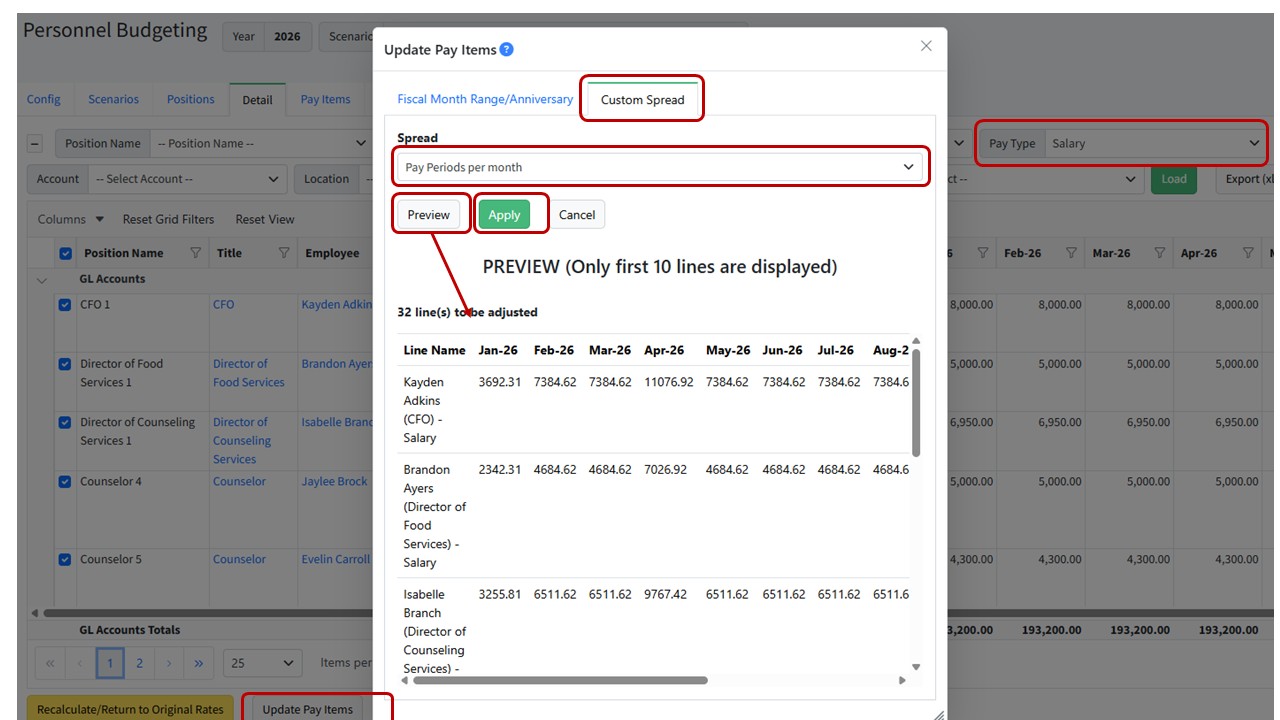
Depending on how you accrue the pay periods, you may want to remove a pay period from the beginning of the year and add it to the end. This can be accomplished by putting into the custom spread the amount of pay periods you would like per pay period.
- Navigate to Setup > Calendar.
- Go to the Custom Spread tab.
- Add a spread with the number of pay periods per month. Ensure the total number of pay periods matches the pay type frequency (for example, if the Pay type frequency is bi-weekly, that is 26 pay periods, if it is bi-monthly, it is 24 pay periods)
- Navigate to Personnel Budgeting > Scenarios.
- Ensure the appropriate scenario is Selected or set as the Default.
- Go to the Detail tab.
- Filter to the appropriate pay items such as the hourly and/or salary pay items.
- Select all records.
- Click Update Pay Items.
- Click on the Custom Spread tab.
- Choose the appropriate spread from the dropdown.
- Click Preview to see the impact of the spread on the first 10 lines.
- Click Apply.
Example 3 - Adjust the number of days per month
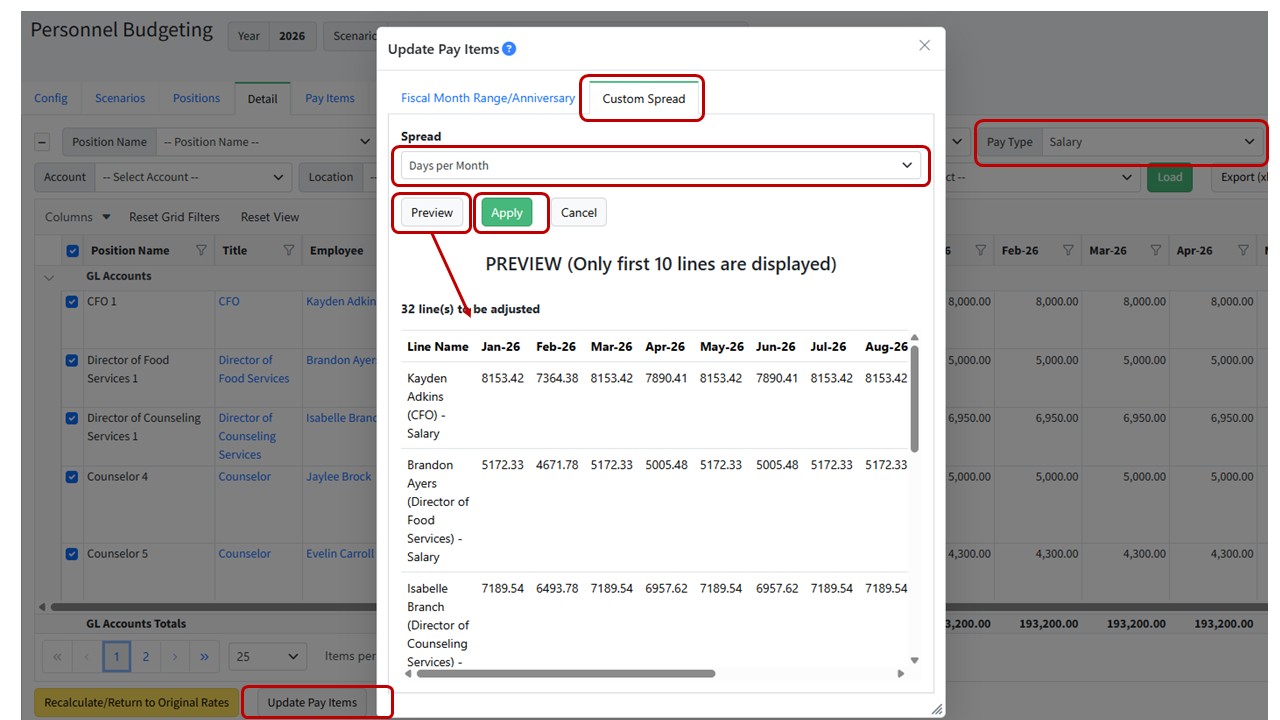
If you need to adjust the total annual salary by the number of days per month, use the following method:
- Navigate to Setup > Calendar.
- Go to the Custom Spread tab.
- Add a spread with the number of days per month.
- Navigate to Personnel Budgeting > Scenarios.
- Ensure the appropriate scenario is Selected or set as the Default.
- Go to the Detail tab.
- Filter to the appropriate pay items such as the hourly and/or salary pay items.
- Select all records.
- Click Update Pay Items.
- Click on the the Custom Spread tab.
- Choose the appropriate spread from the dropdown.
- Click Preview to see the impact of the spread on the first 10 lines.
- Click Apply.
Was this article helpful?
That’s Great!
Thank you for your feedback
Sorry! We couldn't be helpful
Thank you for your feedback
Feedback sent
We appreciate your effort and will try to fix the article