Multi-Year Special Purpose Worksheets (MSPWs) allow budgeting across multiple years. This could potentially have many use cases, but most often will be used for budgeting grants.
Available Subscriptions
MSPWs are an optional paid feature in Martus. MSPWs are only available for the Plus and Premium subscriptions. Please create a ticket through the knowledge base if you are a direct Martus customer, or contact your Martus reseller if you are supported through one of our Martus partners.
Current BETA Limitations
Currently, Personnel Budgeting will NOT overwrite SPW lines in a budget, so this prohibits payroll allocations based by grant.
Client Configuration
The use of MSPWs in Martus is enabled by specific settings on the client record, and configuration consists of specifying the Grant Dimension and if applicable, the Funder Dimension.

Grant Configuration
Grants are configured on the Setup > Grants page in Martus.
- Grants can only be used once.
- Funder can be selected for multiple grants.
- Grants can only be created when the FY exists in Martus and a default planner budget has been set for each year.
- Grants can be edited and/or deleted only IF a MSPW is not yet associated with that grant on the Planner > Grant Budgeting page.
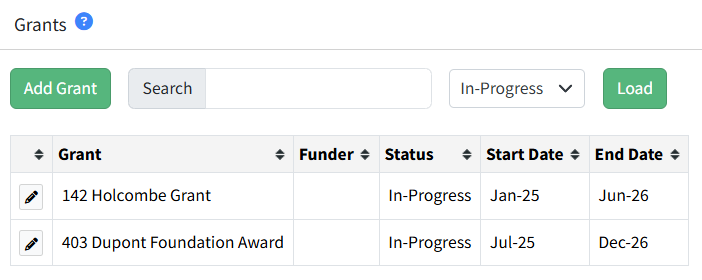
Navigating the Grants Page
- Add Grant - Add additional grants for budgeting in Martus.
- Search - Search on the list of existing grants.
- Status - View the list of grants by their status:
- Completed - Show grants that are no longer in scope because the End Date has passed.
- In-Progress - Show grants that are currently in scope based on the Start Date and End Date.
- Future - Show grants that have a Start Date in the future.
- Load - Click Load to apply the Search term and/or Status selected.
- Grid Sort - Sort on any column.
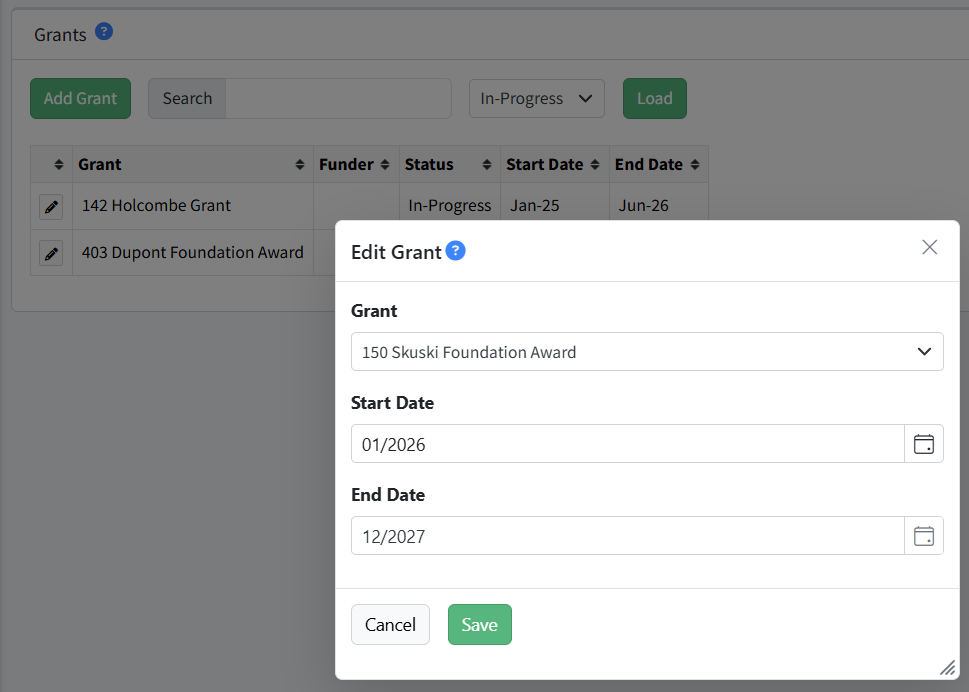
Navigating Add/Edit Grant
- Grant - Select the Grant from the dropdown. The list is determined by the Grant Dimension configured for the client.
- Start Date - Enter the Start Date for the grant.
- End Date - Enter the End Date for the grant.
- Cancel - Cancel any changes and close the modal.
- Save - Save the grant and any changes made.
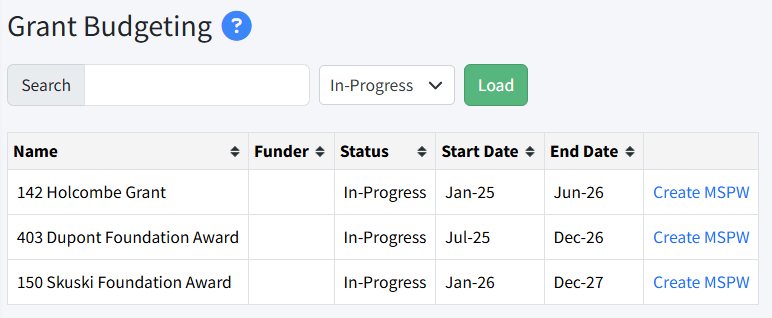
Navigating the Grant Budgeting Page
- Search - Search on the list of existing grants.
- Status - View the list of grants by their status:
- Completed - Show grants that are no longer in scope because the End Date has passed.
- In-Progress - Show grants that are currently in scope based on the Start Date and End Date.
- Future - Show grants that have a Start Date in the future.
- Load - Click Load to apply the Search term and/or Status selected.
- Grid Sort - Sort on any column.
- Create MSPW or Edit MSPW - Click to create a new MSPW or edit the existing MSPW for that grant.
Creating/Editing the Grant Multi-Year SPW (MSPW)
Step-by-Step
- Navigate to Planner > Grant Budgeting. There must be at least one grant configured in Setup > Grants for this menu option to appear in Martus.
- Click Create to create a new MSPW for that grant. Click here for specific information on building SPWs in Martus.
- Click Edit to edit an existing MSPW for that grant. Click here for specific information on building SPWs in Martus.
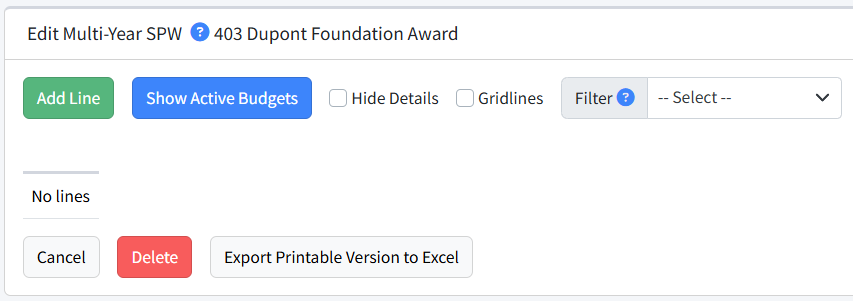
Navigating the Edit Multi-Year SPW Page
- Add Line - Add a line to the SPW.
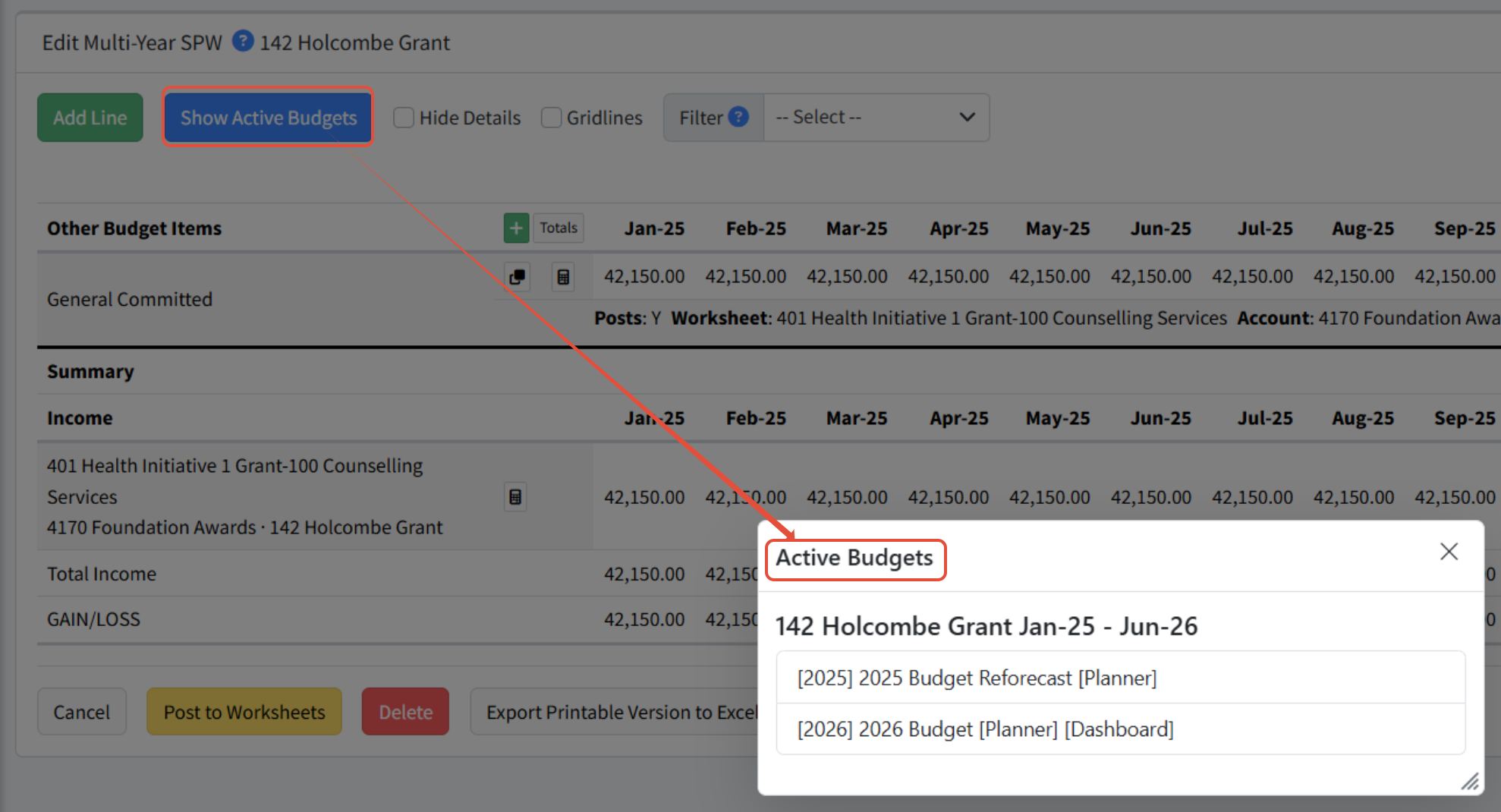
- Show Active Budgets - Show the budgets associated with this MSPW.
- Hide Details - Hide the detail lines.
- Gridlines - Hide/show the gridlines.
- Filter - Select a option to filter. Further filters will appear if in scope.
- Cancel - Cancel any changes and close the modal.
- Post to Worksheets - Post this MSPW to the appropriate worksheets.
- Delete - Delete the MSPW.
- Export Printable Version to Excel - Export the MSPW to Excel for viewing.
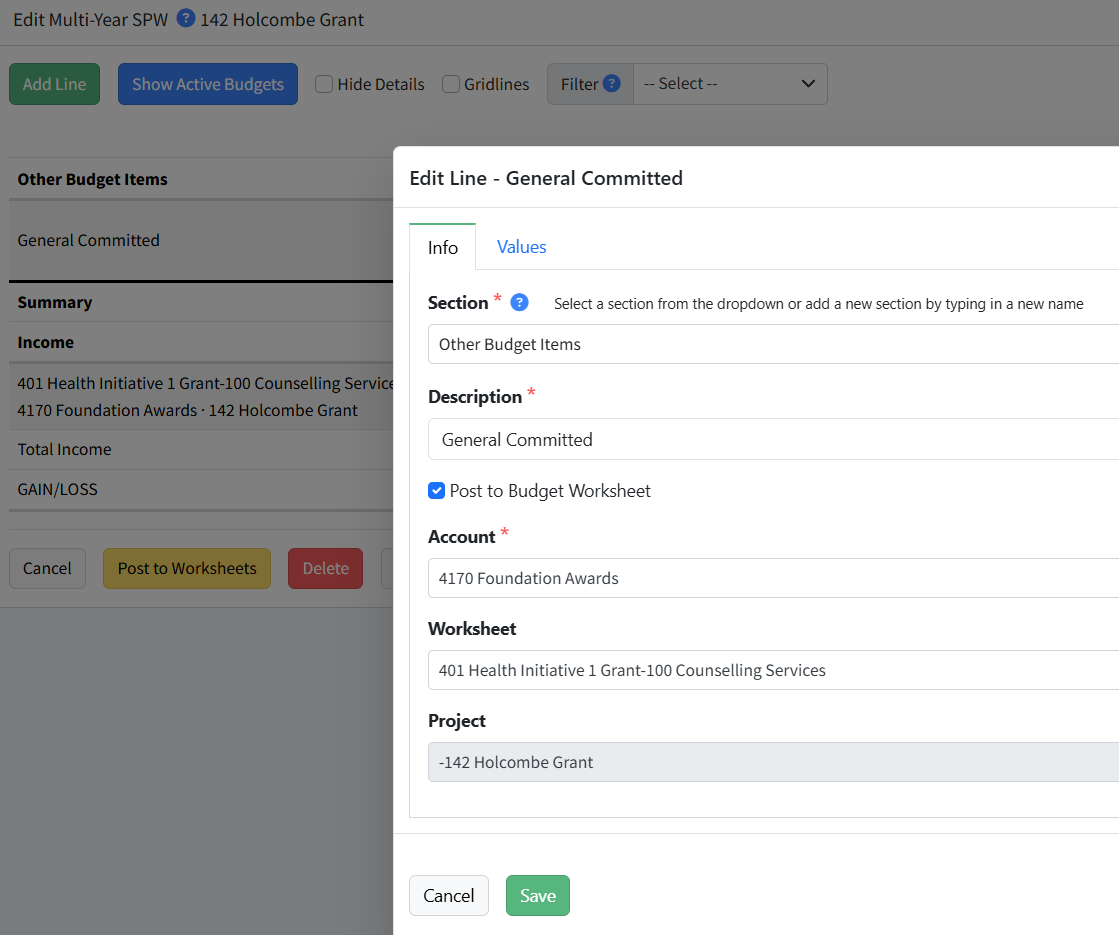
Specify the account and dimensions to which the individual lines will be posted.
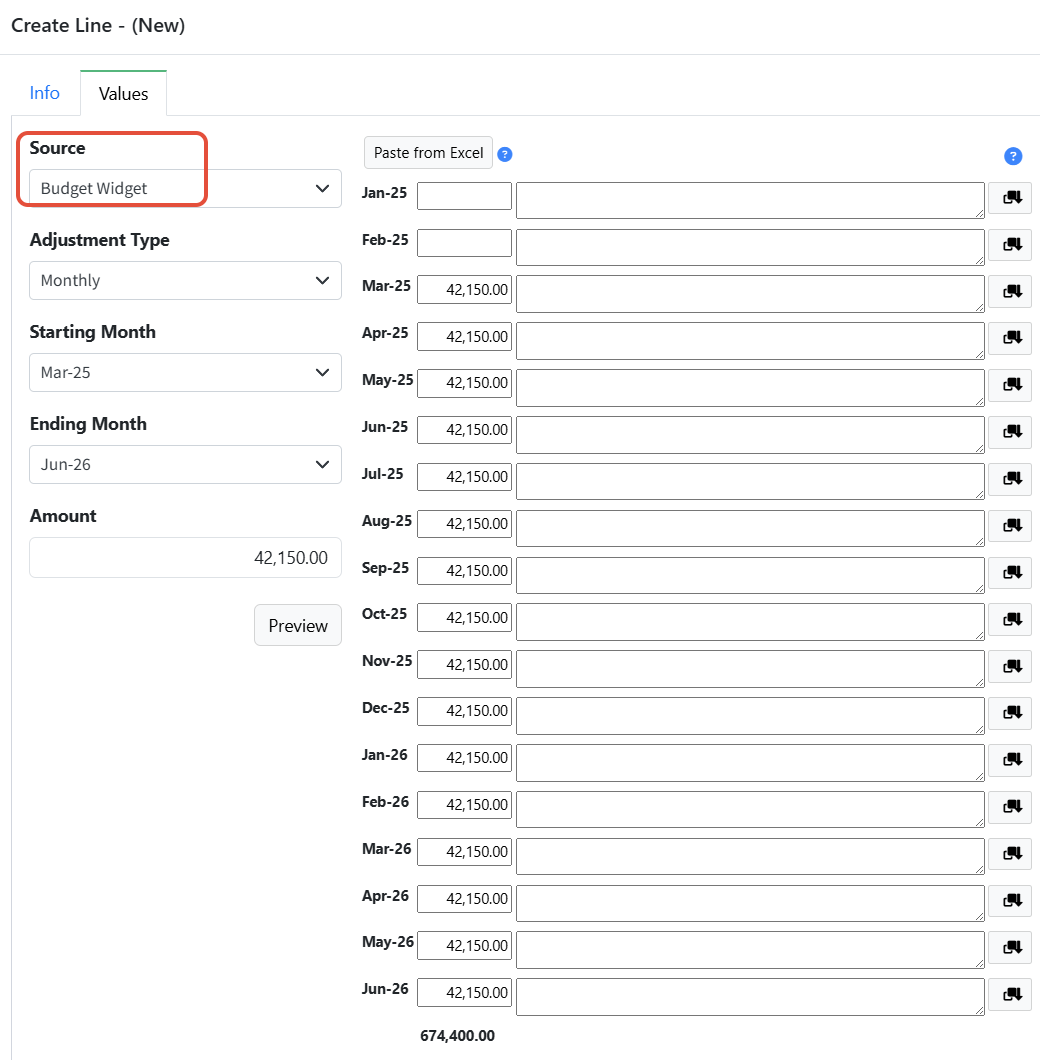
Enter the budget values using the Source selected. All months for the length of the grant will be editable unless they are frozen, or if the worksheets are locked.
Click Show Active Budgets to view the budgets in scope for this MSPW.
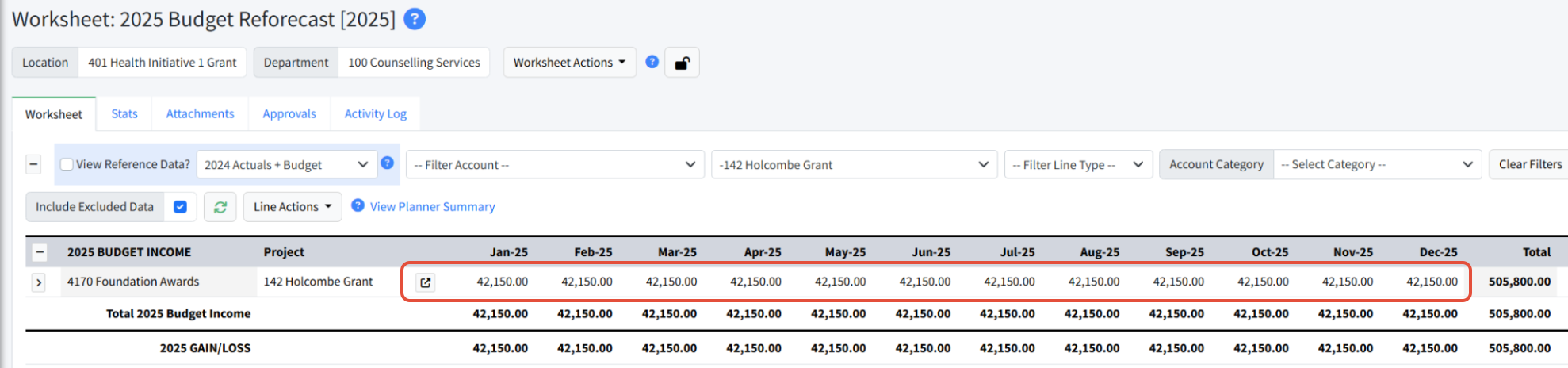
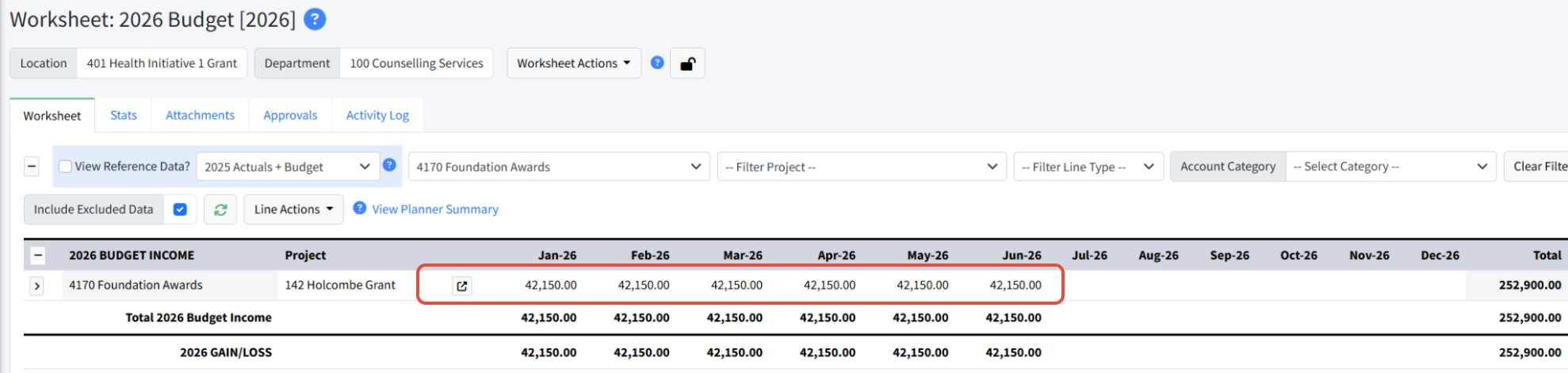
Values are posted to all the budget worksheets in scope based on the length of the grant. Messages will provide details that the posting was successful or if there were errors.
Was this article helpful?
That’s Great!
Thank you for your feedback
Sorry! We couldn't be helpful
Thank you for your feedback
Feedback sent
We appreciate your effort and will try to fix the article