Position Types are optional, and are used to group positions to filter or sort various tabs and reports within Personnel Budgeting. Organizations can choose what position types work for them according to their needs.
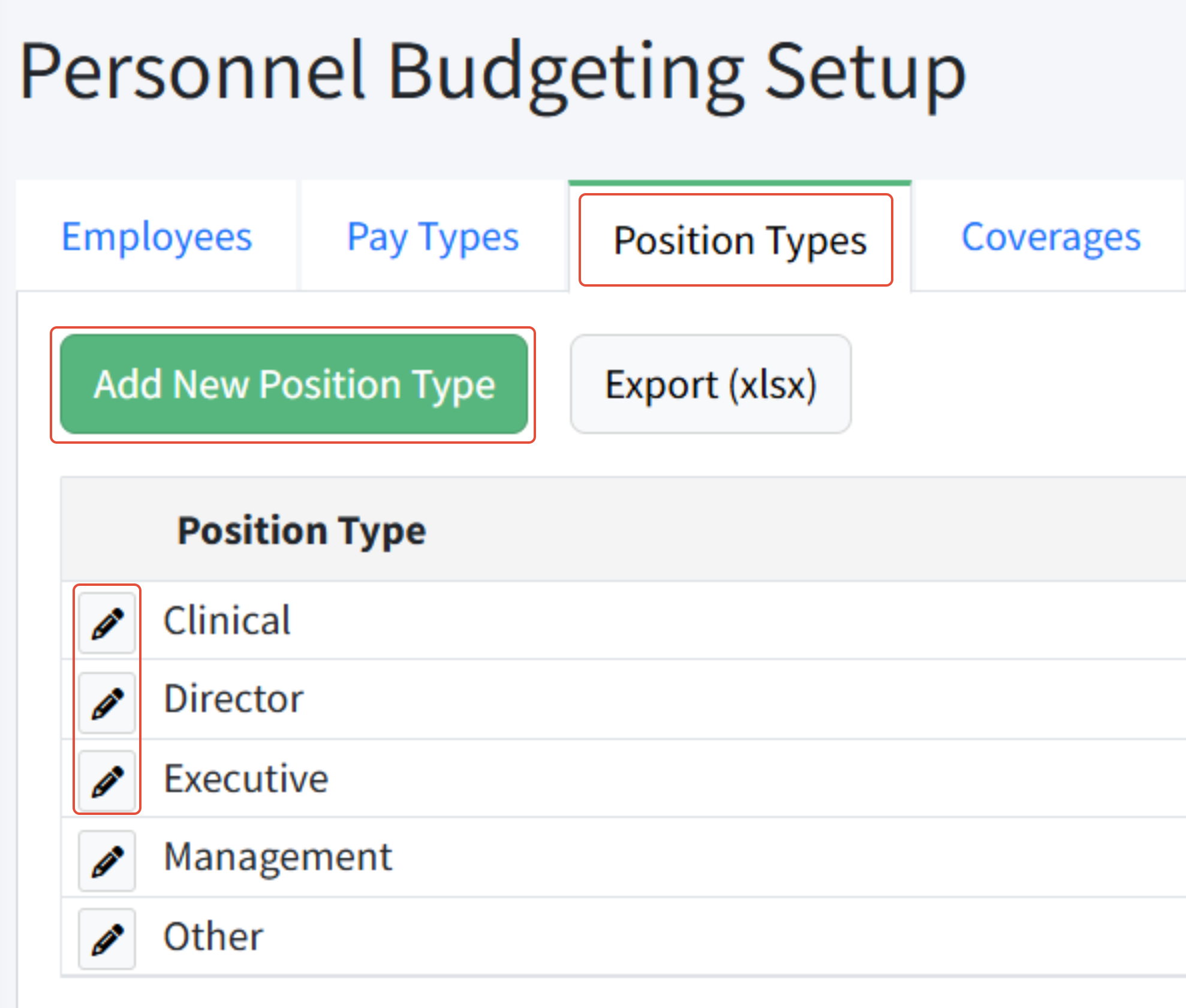
Position types are managed in Personnel Budgeting > Personnel Budgeting Setup > Position Types.
Common examples of position types are below.
Example 1: Employee Status
- Full-Time Salary
- Full-Time Hourly
- Part-Time Hourly
- Seasonal
- Intern
Example 2: Organizational Level
- Executive
- Director
- Manager
- Associate
- Specialist
- Administrative
Adding a Position Type
- Navigate to Personnel Budgeting > Personnel Budgeting Setup > Position Types.
- Enter the Position Type name.
- Click Save to save the new type, or click Cancel to leave without saving.
How To Assign A Position Type
Position types are assigned to positions.
- Navigate to Personnel Budgeting > Scenarios > Positions.
- Click the Edit (pencil) icon for the position for which you want to assign the position type.
- Select the desired Position Type from the dropdown.
- Click Save.
Notes about Position Types
Was this article helpful?
That’s Great!
Thank you for your feedback
Sorry! We couldn't be helpful
Thank you for your feedback
Feedback sent
We appreciate your effort and will try to fix the article