Review the requirements and complete the steps below to set up the Martus integration with Sage 300.
Requirements
Sage 300 Server
- Sage 300 Web Screens must be installed and configured on your server.
- Martus will need the login URL to access the API via WebScreens.
It typically appears as: https://{{hostname}}/Sage300WebApi
- Martus will need the login URL to access the API via WebScreens.
- Update the web.config file
- Typically stored in the \Sage\Sage300\Online\WebAPI folder
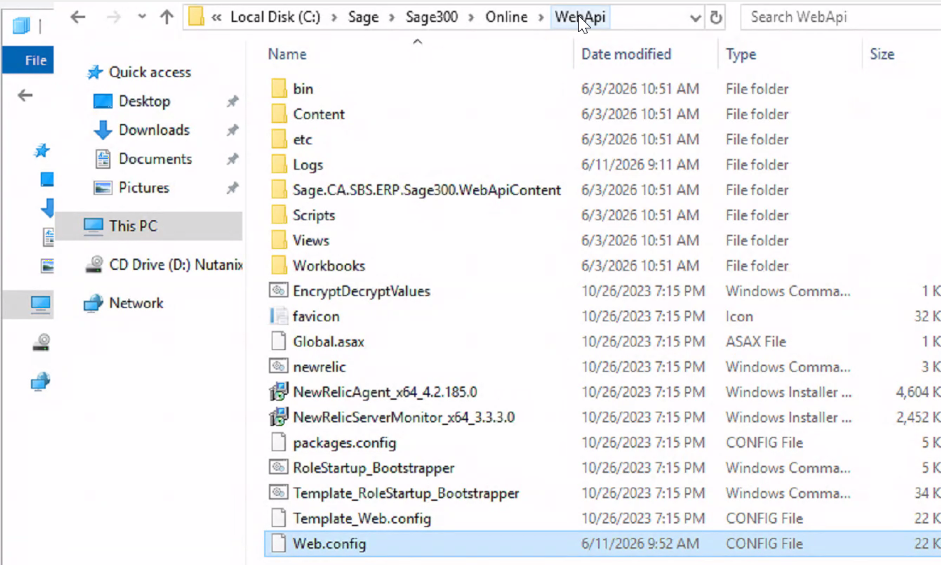
- Open as Administrator in Notepad
- Update key AllowWebAPIAccessforAdmin = True & Save

- Restart the Application pools for Sage 300 to ensure the changes take place
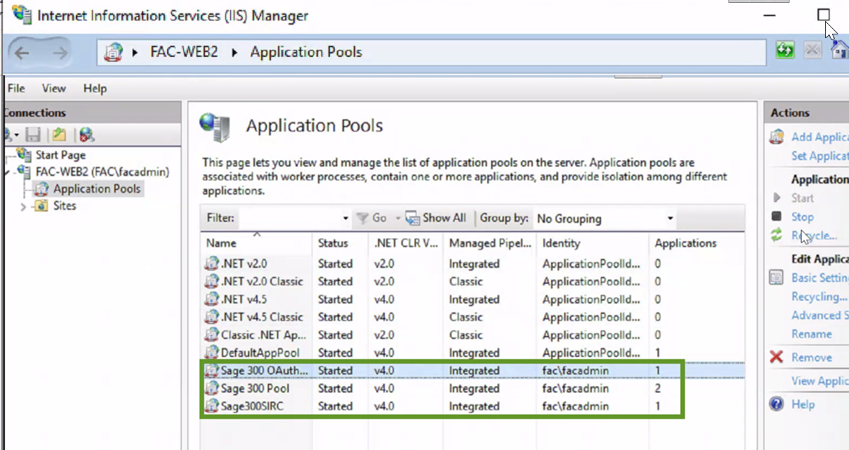
- Typically stored in the \Sage\Sage300\Online\WebAPI folder
- Sage 300 server must whitelist Martus IP Addresses for access.
- 52.177.126.2 (for all locations)
- 145.132.8.78 and 48.221.80.17 (US)
- 145.191.64.27 (Canada)
- 51.56.16.8 (Australia)
- 52.177.126.2 (for all locations)
Ensure all applicable security standards have been met. (ex. URL - 'https' vs 'http')
IIS (Internet Information Services) may need to be present (unknown at this time if this is a requirement).
Sage 300
The user in Martus who is going to make the connection to Sage 300 must be an Admin-level user in Sage 300.
Steps to Set Up Sage 300 in Martus
- In Martus, go to Setup > Sage 300.
- Enter the Database ID from Sage 300 into the Company Id
- This is found on the
- Enter the User ID from Sage 300.
- Enter the User Password from Sage 300.
- Enter the Base URL(used for accessing Web Screens).
- It typically appears as: https://{{hostname}}/Sage300WebApi
- Click Save.
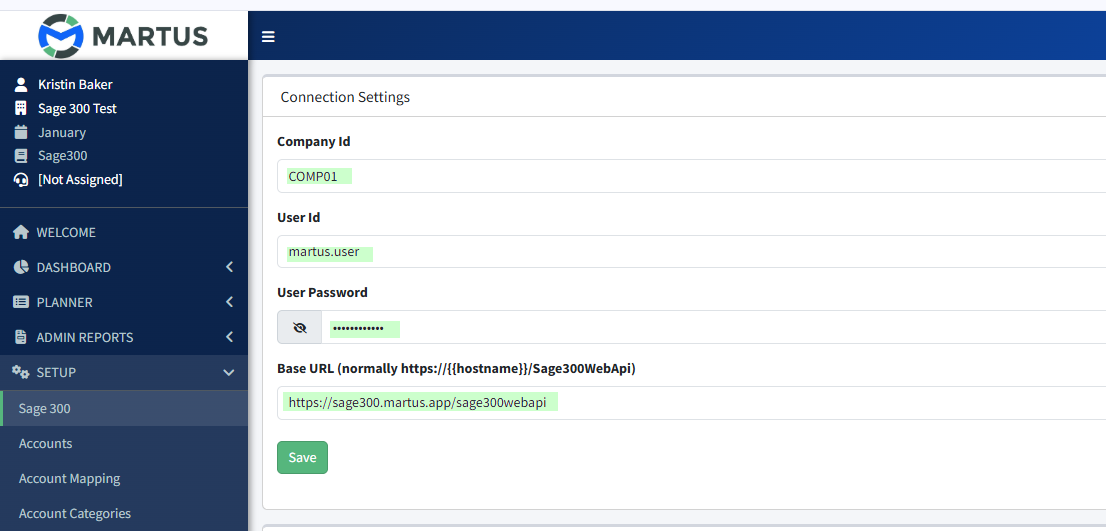
- Click Verify Permissions to check the connection.
- The last step will be to configure dimensions in Martus. Please connect with Martus Support to determine the ideal dimension setup.
- In Sage 300, navigate to General Ledger > G/L Setup > Options > Segments tab and screenshot your Sage 300 segments to provide to Martus Support.
Troubleshooting a Failed Connection
Verify Permissions is unsuccessful
- (Admin) Check the user name & password
- (IT) The connection may also need to include the port if the connection doesn’t work initially:
https://{{{hostname:port}}}/Sage300WebApi
Was this article helpful?
That’s Great!
Thank you for your feedback
Sorry! We couldn't be helpful
Thank you for your feedback
Feedback sent
We appreciate your effort and will try to fix the article