Integration Documents - Sage 300
Sage 300 - Integration Features and Requirements
Integration Requirements
Listed below are the requirements for integration with Martus via the Sage 300 API.
- WebScreens must be enabled within Sage 300 and the URL provided to Martus.
- The Sage 300 company ID must be provided to Martus.
- The Martus IP addresses listed in the Guide to Support Tools must be whitelisted.
Integration Features
Current Features
Sync accounts and dimensions from Sage 300 each weeknight via AutoUpdate and ad hoc.
- Sync GL transactions from Sage 300 each weeknight; per standard Martus functionality, the nightly sync (AutoUpdate) updates the current and previous two full months. Ad hoc sync is available to allow the customer to sync any desired range of months.
- Drilldown in Martus from standard financial summary reports to see transaction details.
- Export of budget from Martus in a format optimized for import into Sage 300.
- Martus' Cash Flow Forecasting is available for Sage 300 integrations at the Premium subscription level.
- Martus honors 12 reporting periods for Sage 300.
- Martus will recognize any Adjustment entries posted in period 14 on the Transaction Report honoring the date they were posted and closing entries, transactions posted in period 15, will not be included in Martus.
Dimension Support
As with any Martus configuration, the Implementation Consultant works with the customer to identify the dimensions that are important to budgeting and reporting. (GL accounts are not considered dimensions within Martus.)
Martus can support whatever segments Sage 300 uses up to the Martus maximum of 8 dimensions. Account mapping can vary with segment order. A line dimension in Martus must be reserved for Sage 300 account mapping.
Martus supports adding custom, Martus-only dimensions. Account mappings for the custom dimension are also supported.
Budget Management between Sage 300 and Martus
- Sage 300 does not support pulling budgets from Sage 300 into Martus. At the time of implementation, any budgets that already exist in Sage 300 and are wanted in Martus must be exported from Sage 300 and imported into Martus individually.
- Sage 300 does not support pushing budgets from Martus to Sage 300. Any budgets that are needed in Sage 300 must be exported from Martus and imported into Sage 300.
Features Not Yet Supported
- Syncing of balance sheet accounts, along with the standard Balance Sheet and Cash Flow Forecast reports
- Fund Balance Report
- Multi-currency
- Multi-entity & Consolidation
Unavailable Features - Not Supported by the Capabilities of Sage 300
The integration features below are not available with Sage 300 because Sage 300 does not provide a way for Martus to offer these features.
- Display of attachments associated with transaction detail
- Display of Vendor Name column in transaction detail
- Statistical accounts
- Pull a budget from Sage 300 into Martus
- Push a budget from Martus to Sage 300
Other Notes
- Optional fields in Sage 300 are not supported as dimensions within Martus
- Martus also provides a file-based integration with Sage 300
Sage 300 - Integration Setup & Troubleshooting
Review the requirements and complete the steps below to set up the Martus integration with Sage 300.
Requirements
Sage 300 Server
- Sage 300 Web Screens must be installed and configured on your server.
- Martus will need the login URL to access the API via WebScreens.
It typically appears as: https://{{hostname}}/Sage300WebApi
- Martus will need the login URL to access the API via WebScreens.
- Update the web.config file
- Typically stored in the \Sage\Sage300\Online\WebAPI folder
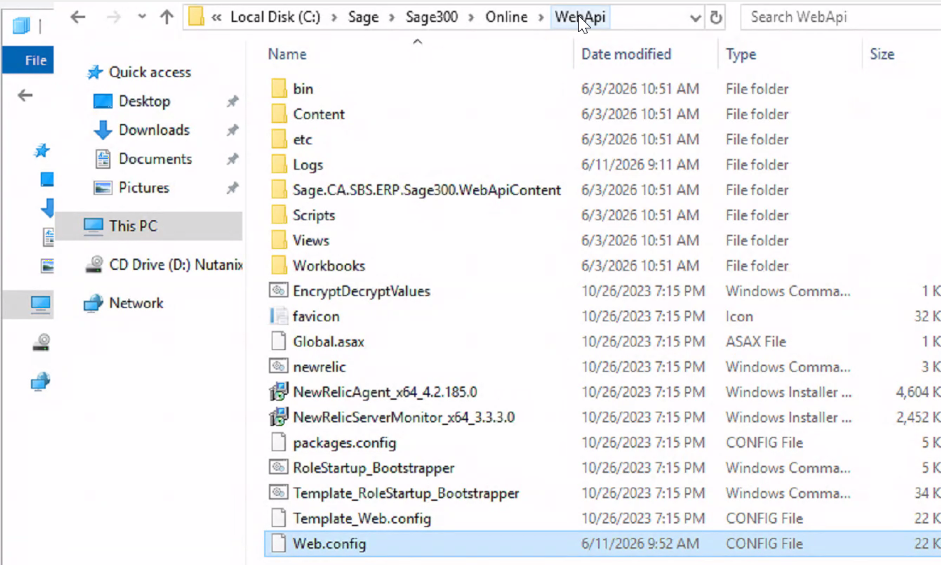
- Open as Administrator in Notepad
- Update key AllowWebAPIAccessforAdmin = True & Save

- Restart the Application pools for Sage 300 to ensure the changes take place
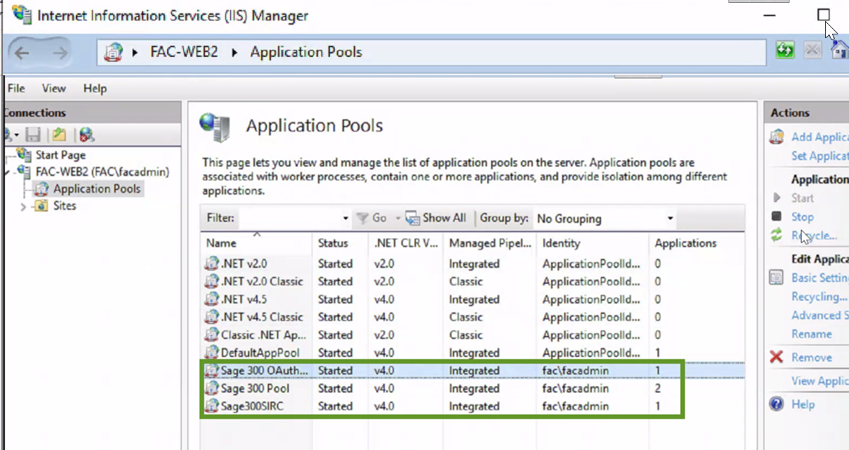
- Typically stored in the \Sage\Sage300\Online\WebAPI folder
- Sage 300 server must whitelist Martus IP Addresses for access.
- 52.177.126.2 (for all locations)
- 145.132.8.78 and 48.221.80.17 (US)
- 145.191.64.27 (Canada)
- 51.56.16.8 (Australia)
- 52.177.126.2 (for all locations)
Ensure all applicable security standards have been met. (ex. URL - 'https' vs 'http')
IIS (Internet Information Services) may need to be present (unknown at this time if this is a requirement).
Sage 300
The user in Martus who is going to make the connection to Sage 300 must be an Admin-level user in Sage 300.
Steps to Set Up Sage 300 in Martus
- In Martus, go to Setup > Sage 300.
- Enter the Database ID from Sage 300 into the Company Id
- This is found on the
- Enter the User ID from Sage 300.
- Enter the User Password from Sage 300.
- Enter the Base URL(used for accessing Web Screens).
- It typically appears as: https://{{hostname}}/Sage300WebApi
- Click Save.
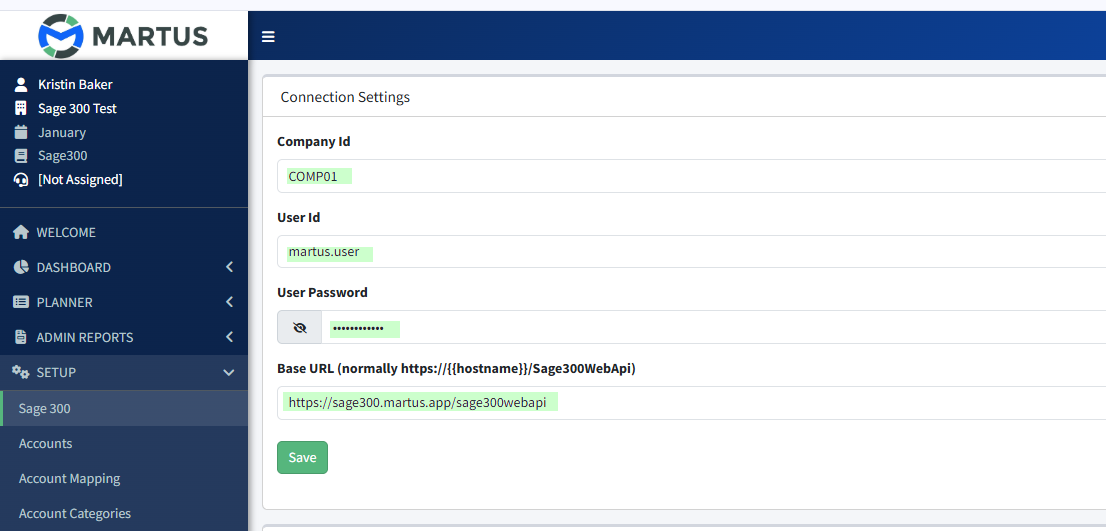
- Click Verify Permissions to check the connection.
- The last step will be to configure dimensions in Martus. Please connect with Martus Support to determine the ideal dimension setup.
- In Sage 300, navigate to General Ledger > G/L Setup > Options > Segments tab and screenshot your Sage 300 segments to provide to Martus Support.
Troubleshooting a Failed Connection
Verify Permissions is unsuccessful
- (Admin) Check the user name & password
- (IT) The connection may also need to include the port if the connection doesn’t work initially:
https://{{{hostname:port}}}/Sage300WebApi