Martus Pages
The Welcome Page in Martus
Every user is greeted with the Welcome page when they log in to Martus. Depending on the type of user, the Welcome page will display certain cards with specific information.
Welcome to Martus!
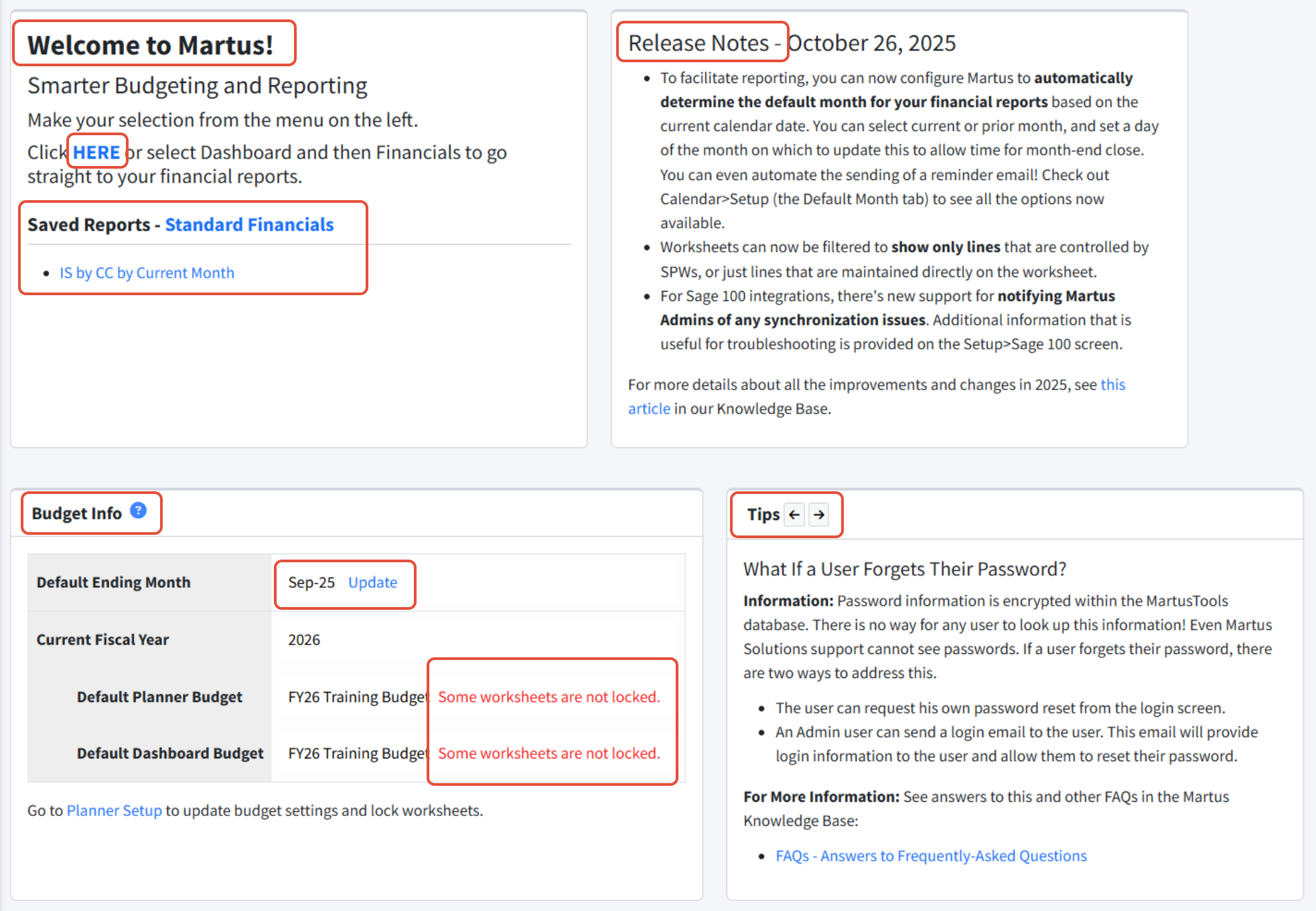
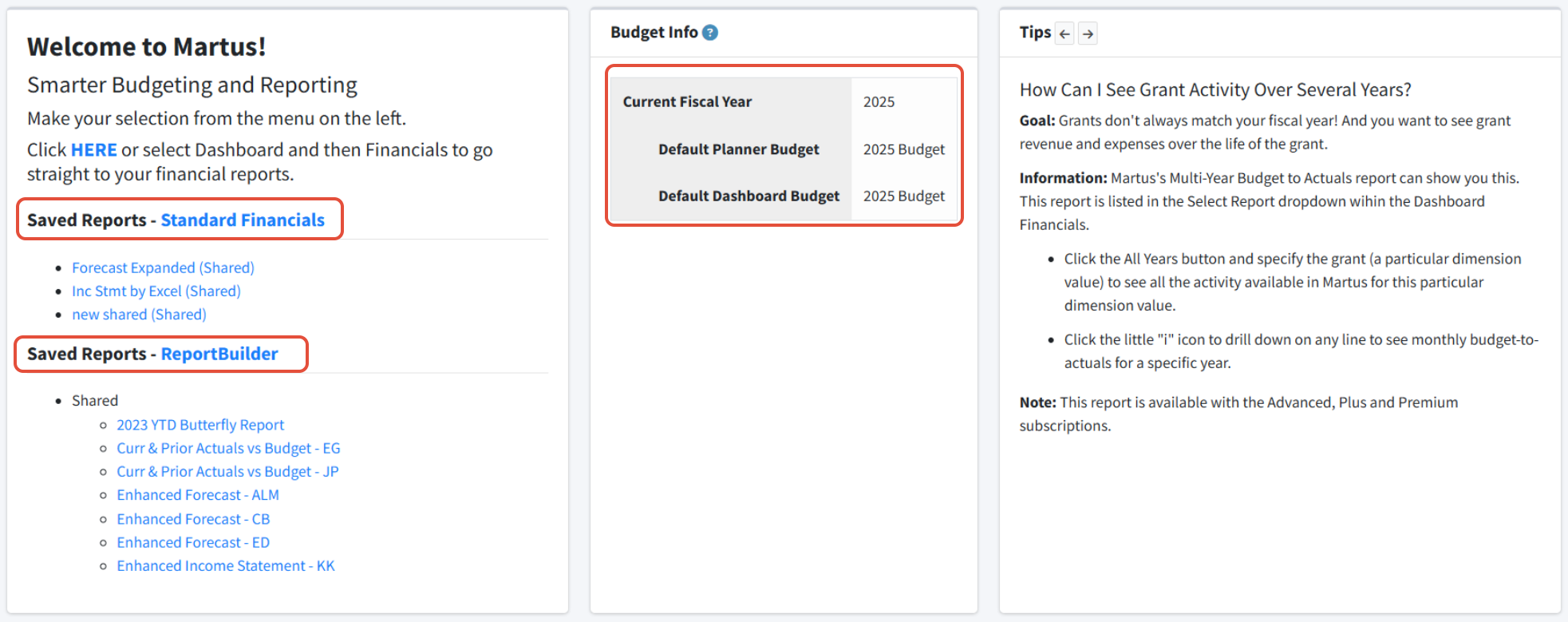
The Welcome to Martus! card displays a link - HERE - to your default view in Dashboard > Financials. Saved Reports - Standard Financials displays any user and shared standard Martus reports. Saved Reports - ReportBuilder displays any user and shared custom ReportBuilder reports. This card is available to Admin and non-admin users.
Release Notes
The Release Notes card displays current release notes and upcoming webinars, along with Martus Support holidays when appropriate. This card is available to Admin users only.
Budget Info
Budget Info displays the Current Fiscal Year and associated Default Planner and Dashboard Budgets, along with the Default Budget Year and associated Default Planner and Dashboard Budgets, for all Martus users. Admin users will also see the Default Month, and links to update the Default Month and budget settings, along with warnings concerning locked worksheets and recommended updates.
Update Recommended messages in red could indicate:
- The Default Month is set older than the best practice of no more than 1 month prior to the current month.
- Some worksheets are not locked for the budget referenced.
- Default Budgets are not set, which prohibits non-admin users from fully utilizing financial reports and planner worksheets.
Tips
Tips displays appropriate tips for Admin and non-admin users.
Additional cards may show from time to time, including task messages.
Martus Admin User Example
Martus Non-Admin User Example
The Martus Header
The Martus software header has several functions.

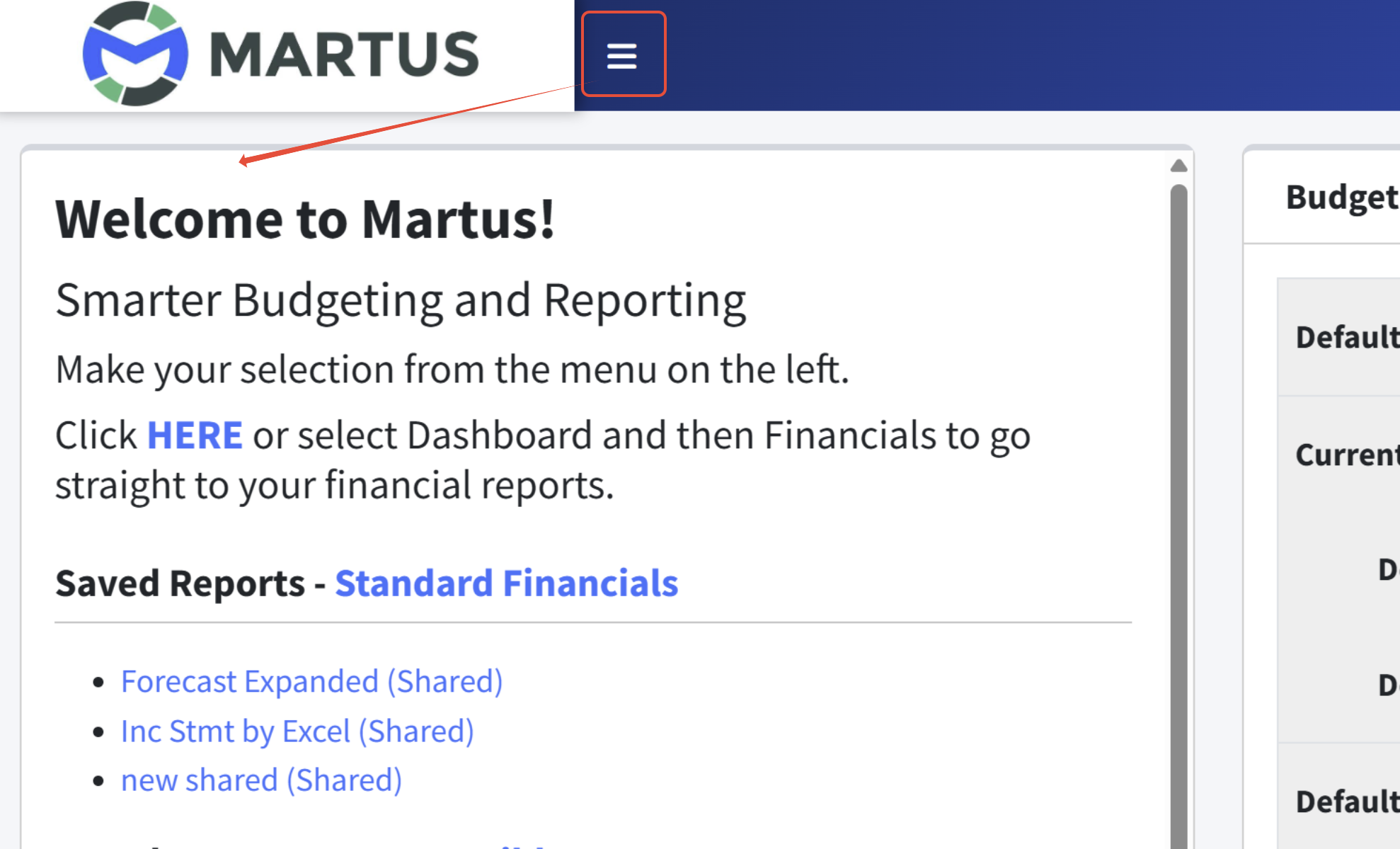
The upper left corner displays the Martus logo or your company logo, or your partner logo, if you have one. Martus Admins and Partner users can review and upload logos in Setup > Branding.
The hamburger icon - three stacked horizontal lines - to the right of the logo can be used to show/hide the Martus Menu.
The chat icon is used to access Ask Marty!, our AI-assisted support tool that searches the knowledge base and help files. More info can be found here in the Guide to Our Support Tools.
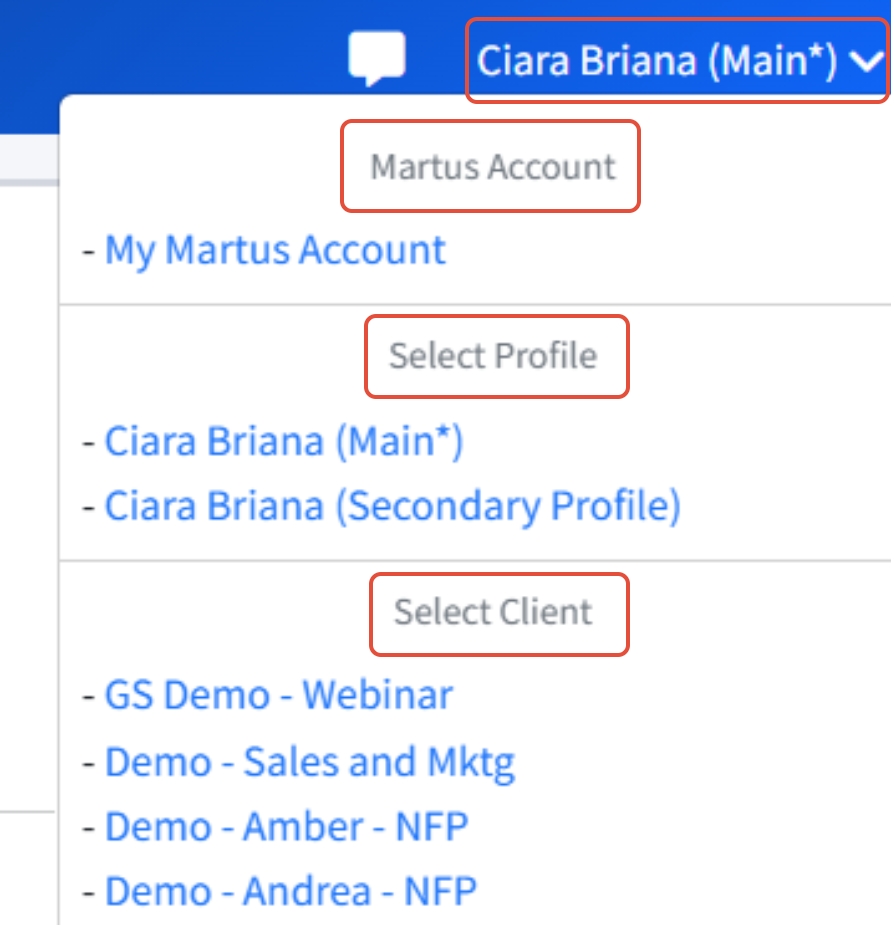
Next to the chat icon is the logged-in user. Clicking the dropdown in the upper right corner reveals three user options. User account information can be accessed via My Martus Account. Also shown are User Profiles (used to create different sets of permissions for the same user in Martus) and Clients, if applicable. If a user has an account in more than one instance of Martus, those instances are shown in the dropdown. Clicking on an instance will log the user into that instance.