Starting Balance Sheet Numbers
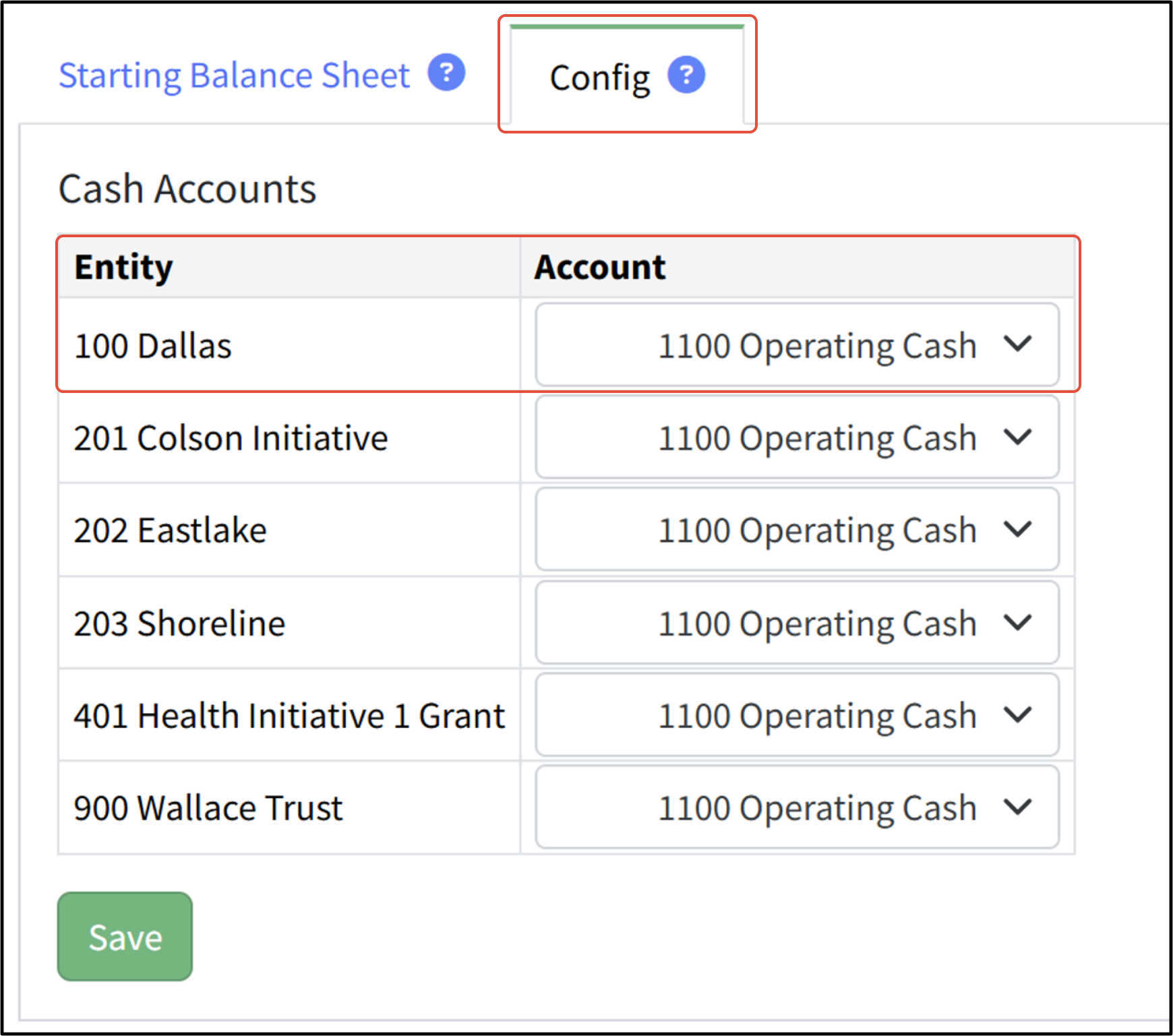
On the Starting Balance Sheet tab, enter balances for each balance sheet account (and balancing dimension). This information can be entered manually, be imported from an Excel spreadsheet, or be created by loading actuals for specific integrations. Specify the cash account for each balancing dimension on the Config tab. This account number is used to absorb the Impact on Cash shown on the Projected Balance Sheet.
Cash Flow Forecasting is part of the Premium subscription level. It is available for all integrations.Martus supports multiple starting balance what-if scenarios and the ability to load actual balances into them. For example, you may wish to have an original scenario from the start of the year, and an updated scenario with a projected balances forecast of your year-end balances (e.g. 3 months of actuals + 9 months of projected recalculated based on the latest actual balances).
- A dropdown allows for selecting starting balance scenarios on the Projected Balance Sheet and on the Statement of Projected Cash Flow, with calculations updated to incorporate scenario selection and amortization.
- Martus supports loading actual balances into scenarios via a modal, with date restrictions based on fiscal year, and allows locking balances to prevent updates from actuals. (NOTE: This is available for Sage Intacct, QuickBooks Online, and QuickBooks Web Connector integrations only, as they support automatically syncing balance sheet accounts.)
- Scenario management features include copying scenarios across years, loading actuals, and handling scenario permissions for different user roles, with scenario creation and editing restricted to owners or Admins.
- The import/export process includes scenario data, validates scenario ownership, and respects lock statuses, ensuring data integrity during bulk operations.
Two tabs make up the Starting Balance Sheet area within Martus.
The Config Tab
Specify the cash account for each balancing dimension (entity) on the Config tab.
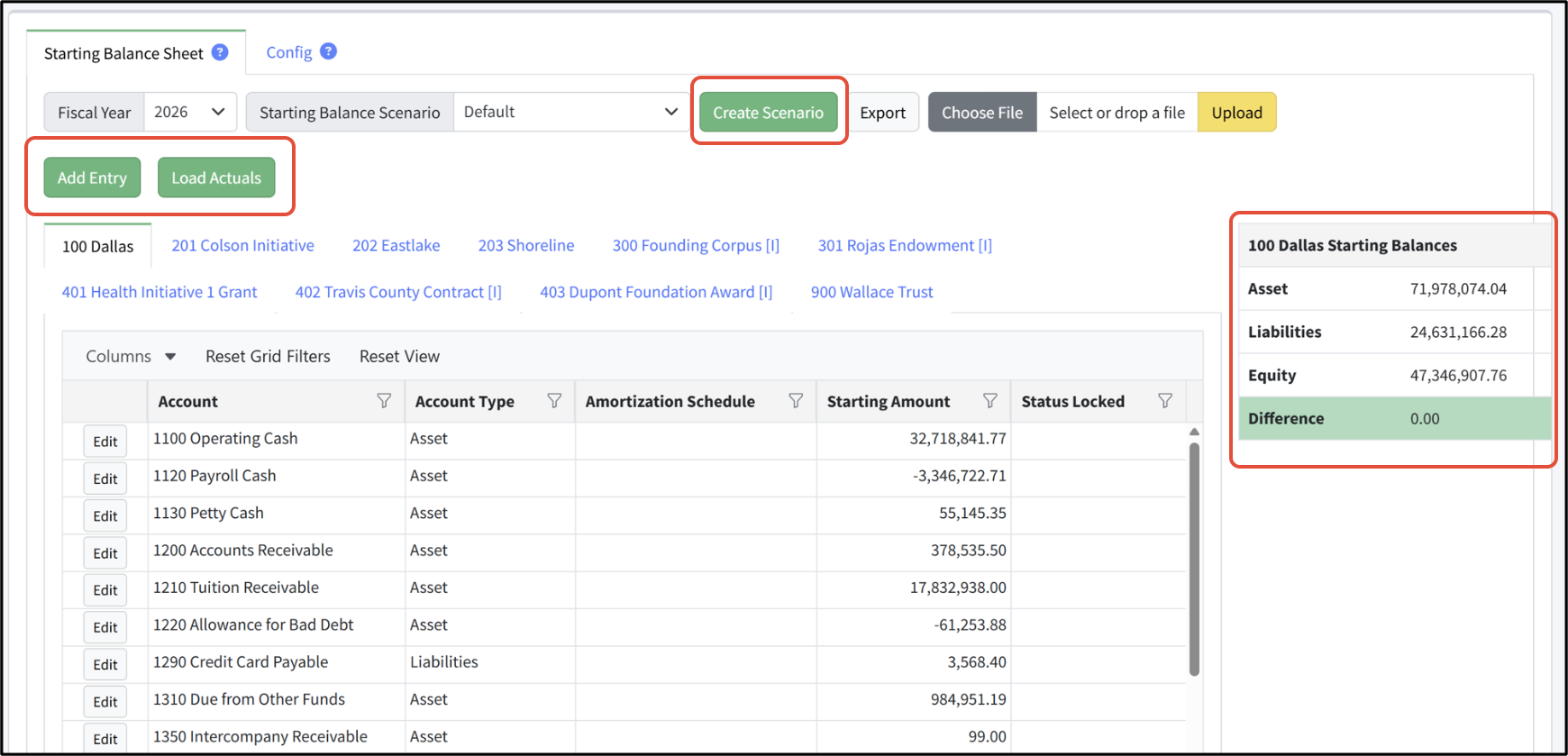
The Starting Balance Sheet Tab
Add entries to the Starting Balance Sheet table. Be sure these values balance by checking the Starting Balances table on the right. The Account, Account Type, Amortization Schedule Starting Amount and Status Locked are all displayed. Additionally each entity is shown in a tab across the top.
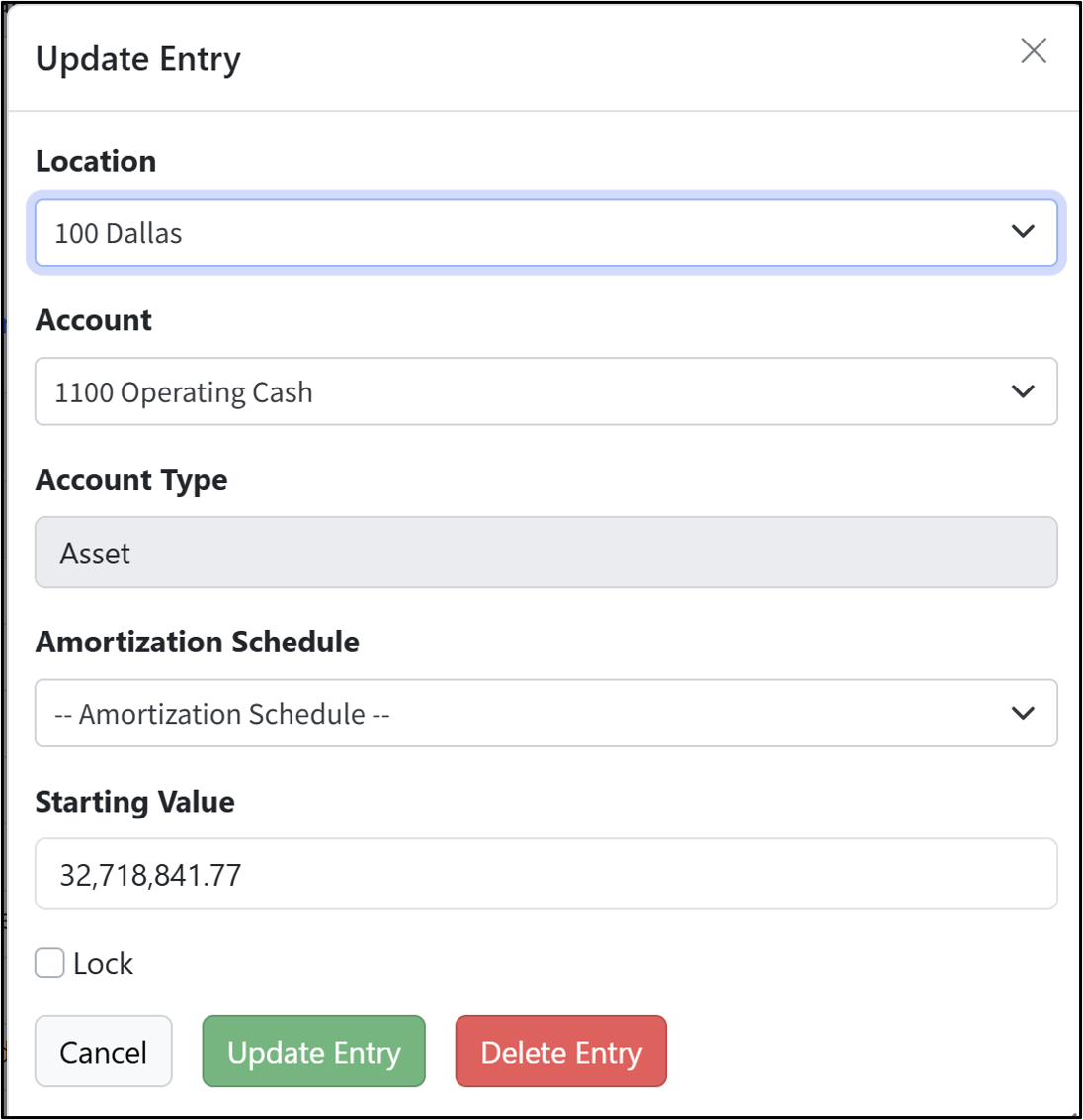
Click Add Entry to add rows to the table. Each row requires the balancing dimension, the account, the amortization schedule, and a starting value. Lock starting values to prevent changes.
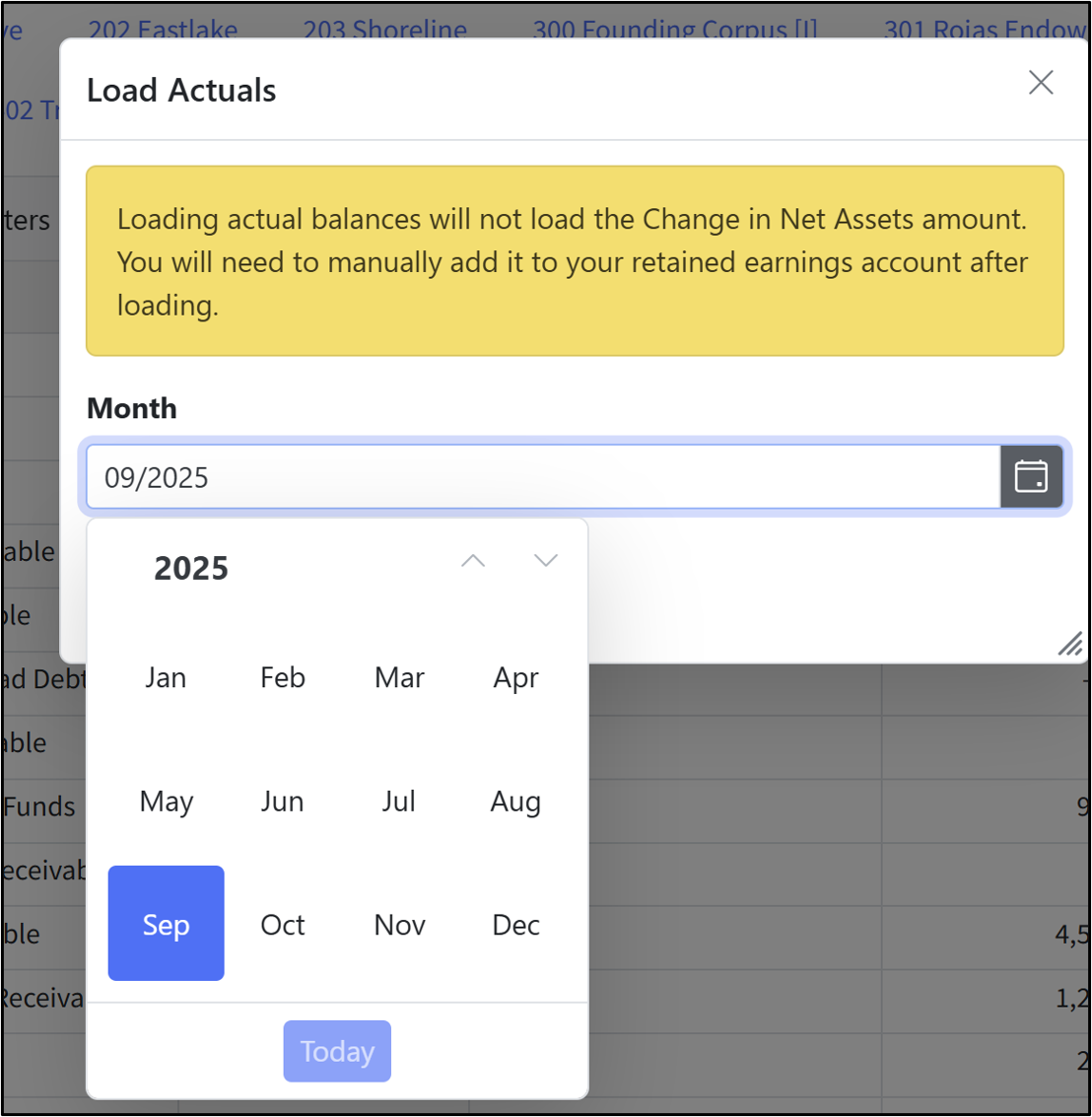
Alternatively, click Load Actuals to use actuals as the starting amount for each row. Select the last month of the prior fiscal year. The ending balance of that month will be used for the starting amount. (NOTE: This is available for Sage Intacct, QuickBooks Online, and QuickBooks Web Connector integrations only, as they support automatically syncing balance sheet accounts.)
Keep in mind that loading actual balances will not load the Change in Net Assets amount. You will need to manually add it to your retained earnings account after loading.
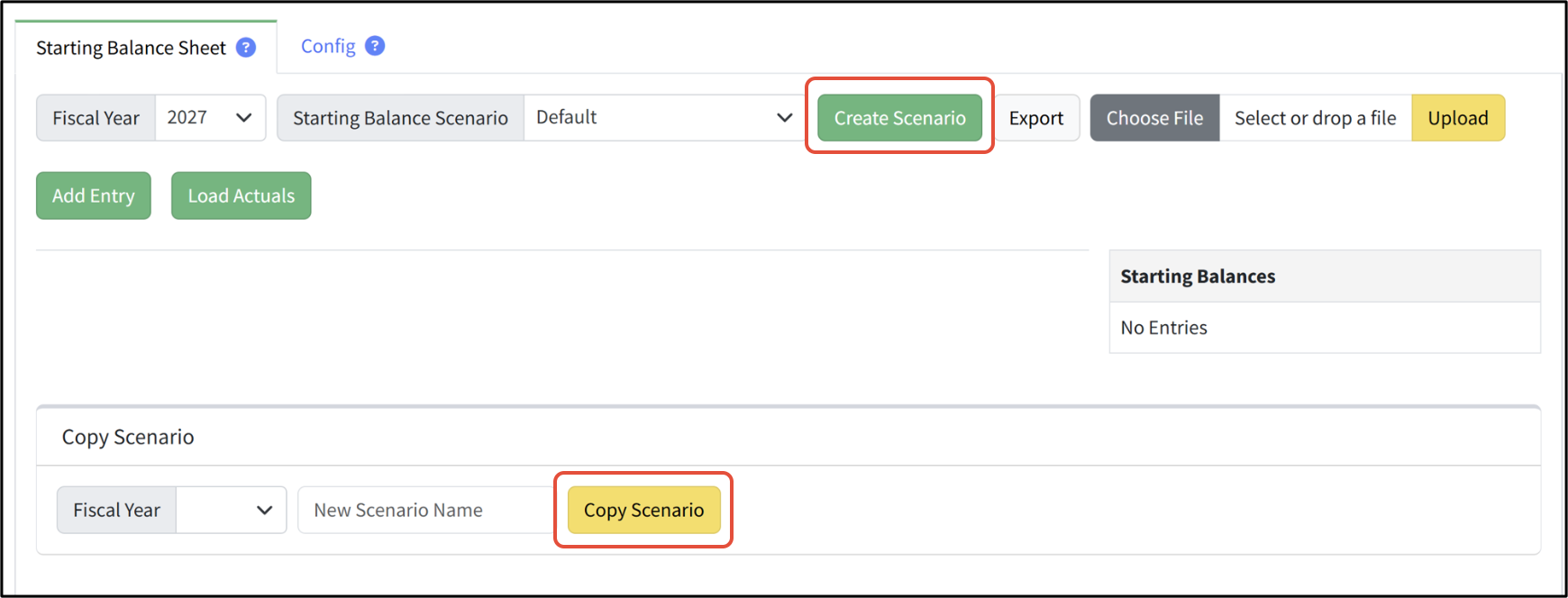
Create a what-if scenario for the starting balance sheet using Create Scenario. Name the scenario, and then populate the rows in the table by adding manual entries, loading actuals (if available), or uploading a file. You can also copy an existing scenario.
NOTES:
- An account with "zero balance" will be loaded if the account had any value during the selected FY period. If the account doesn't have any value during the period - then the account will not be loaded with a zero balance on the Starting Balance screen.
- Loading actuals into a Starting Balance Sheet is available for Sage Intacct, QuickBooks Online, and QuickBooks Web Connector integrations only, as they support automatically syncing balance sheet accounts.
Was this article helpful?
That’s Great!
Thank you for your feedback
Sorry! We couldn't be helpful
Thank you for your feedback
Feedback sent
We appreciate your effort and will try to fix the article