The Default Month helps Martus organize the information that is presented to users. It can be set to update automatically each month, or it can be updated manually by an Admin. It is used to determine the data displayed or used in the following areas:
- Reports - Provides the default Ending Date on the Dashboard > Financial reports and in ReportBuilder. Any user can override the Ending Date to see data from more recent months.
- Worksheets - Provides the ending month through which actuals are shown in the reference data on budget worksheets.
- Load Actuals - Provides the ending month through which actuals are loaded into a new or existing budget.
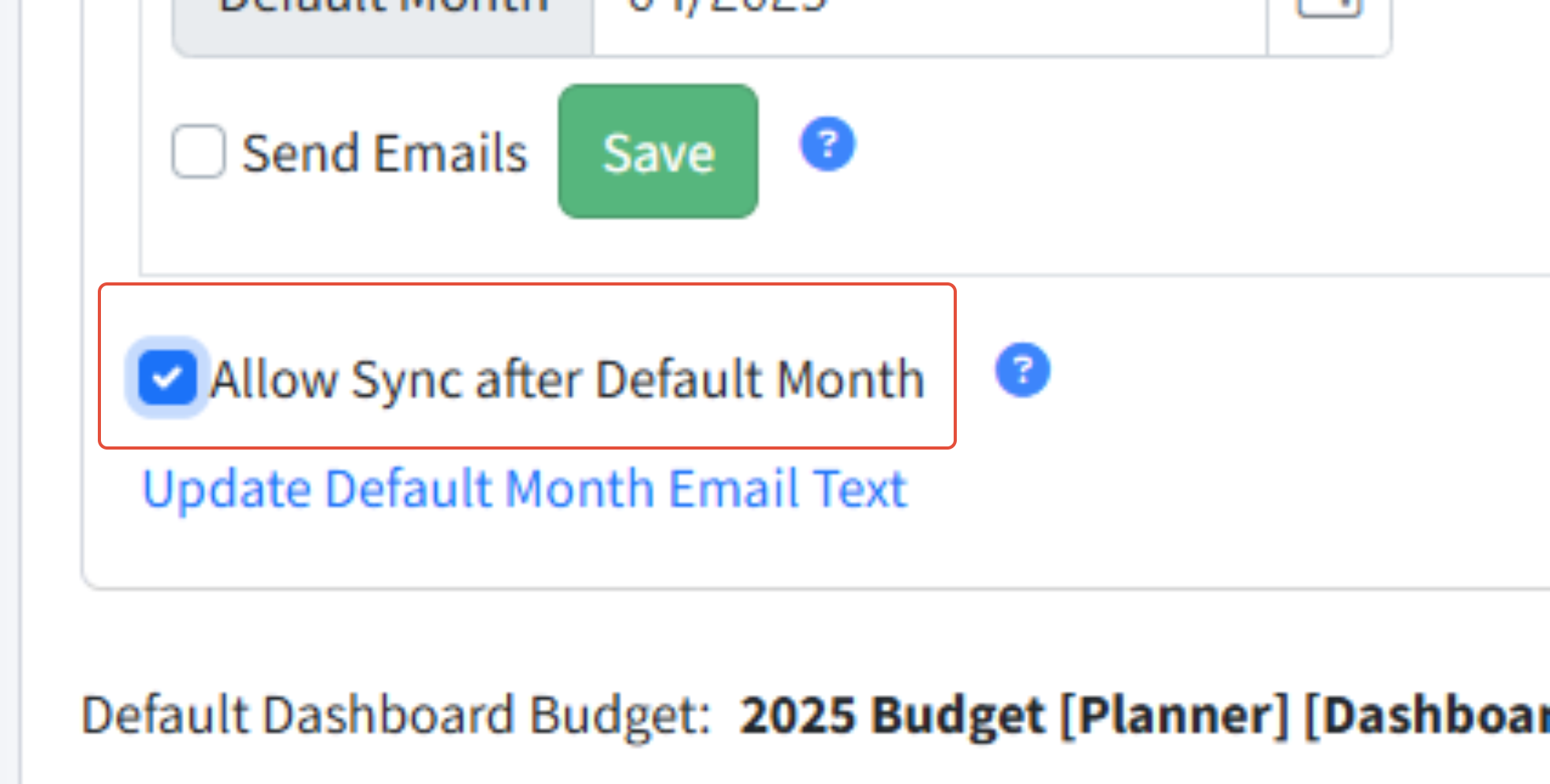
- Nightly Sync - The Default Month will limit the actuals that are synced from your accounting system during the nightly sync if you have unchecked the Allow Sync after Default Month option on the Setup > Calendar page. Otherwise, Martus will sync all actuals year-to-date regardless of the Default Month.
Setting the Default Month
The Default Month can be set to update automatically each month, or it can be updated manually by an Admin.
Auto Set Option
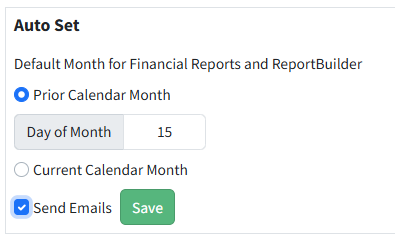
Set the Default Month to automatically update based on the desired selection.
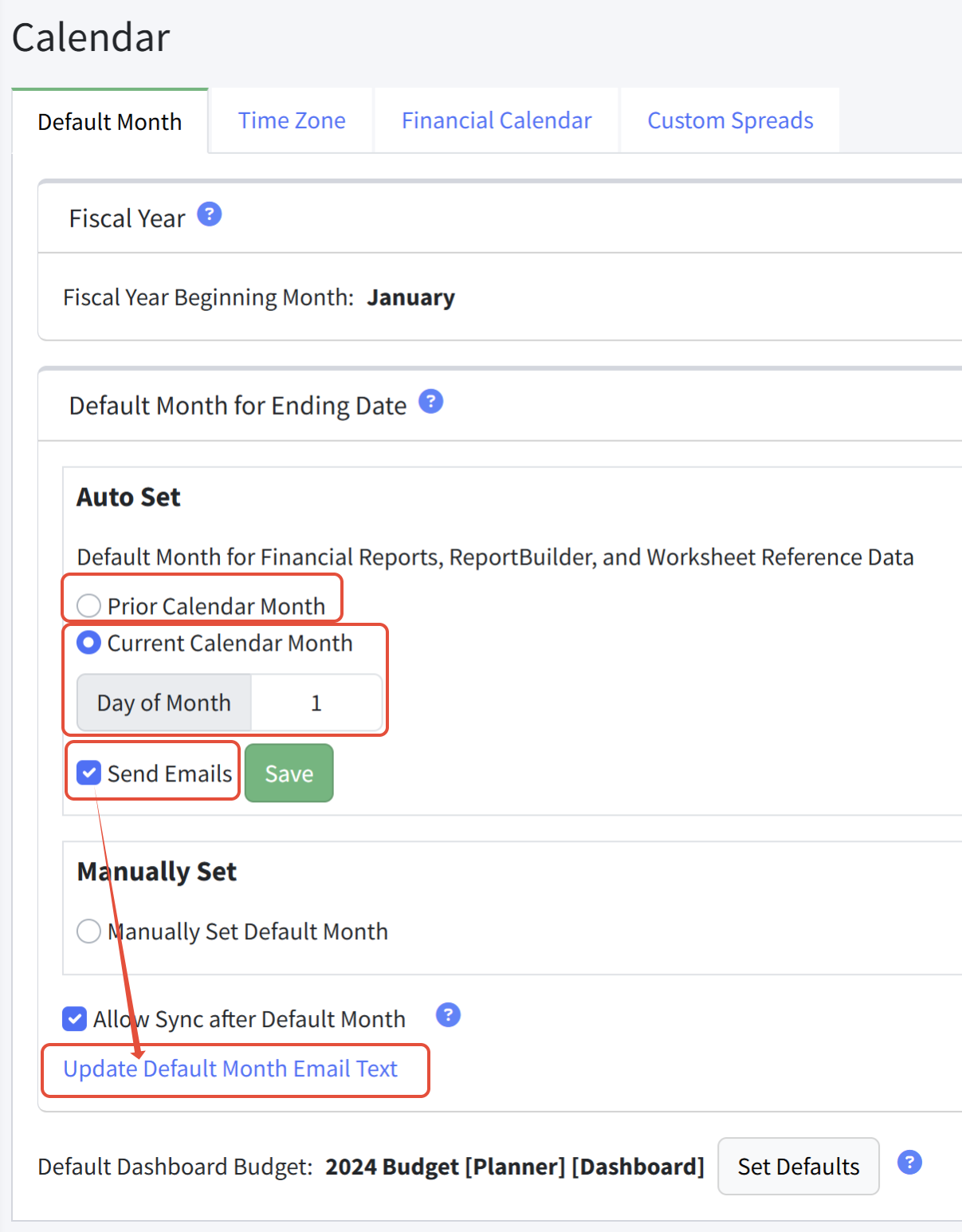
- Prior Calendar Month - The Default Month will update to the current prior month on the day selected.
- Current Calendar Month - The Default Month will update to the current month on the day selected.
Click Send Emails to automatically send a Default Month email to your Martus users to remind them to go to Martus and review their reports. Click Update Default Month Email Text to customize your email. Emails are only sent to users who have logged into Martus.
Step-by-Step
- Select Prior Calendar Month or Current Calendar Month and choose the Day of Month to switch the Default Month.
- Click Send Emails to alert users that the Default Month has been updated in Martus.
- Click Save.
Manually Set Option
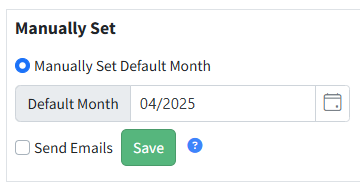
You can choose to set the Default Month manually. Best practice is to keep this set to the current month, or one month prior to the current month, so that your end-users automatically see current actuals.
You may also choose to change this date when you've closed the month in your accounting system, to be sure that the data your users see has been reviewed for accuracy.
Click Send Emails to send a Default Month email to your Martus users when you update the Default Month to remind them to go to Martus and review their reports. Click Update Default Month Email Text to customize your email. Emails will only be sent to users who have logged into Martus.
Step-by-Step
- Click Manually Set Default Month.
- Select the month.
- Select Send Emails to alert users that the Default Month has been updated in Martus.
- Click Save.
Setting the Default Dashboard Budget
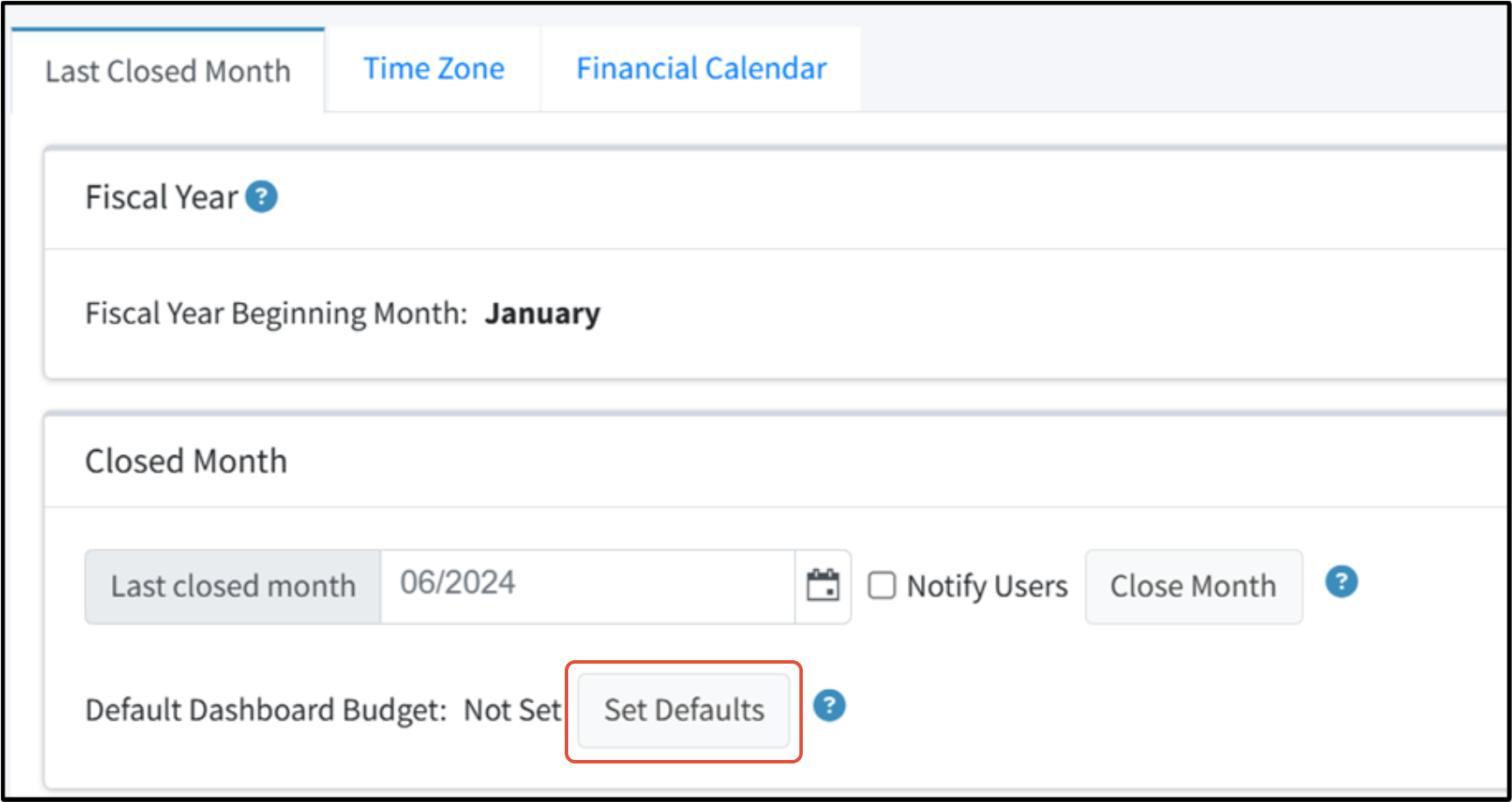
The Setup > Calendar page also displays and allows an Admin to assign the default dashboard budget for the current fiscal year. The default dashboard budget is available to non-admin users on Dashboard > Financial reports and is the default budget for Admins.
Step-by-Step
- Go to Setup > Calendar.
- Click Set Defaults.
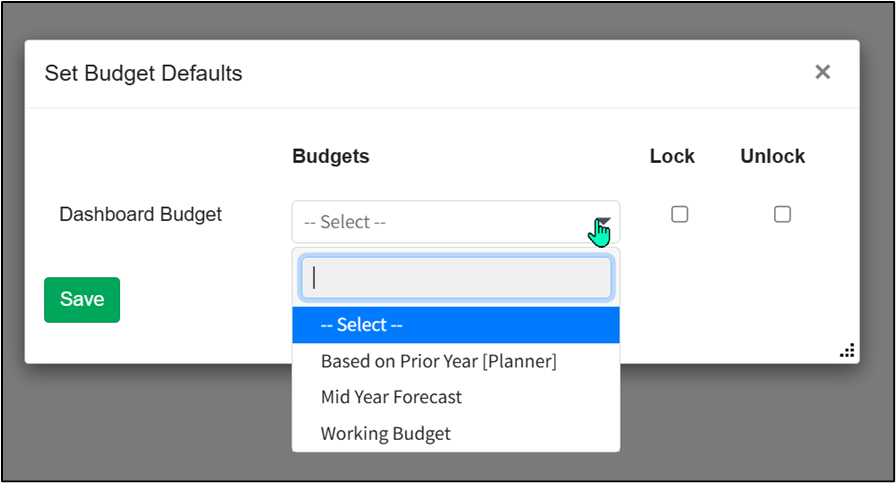
- Choose the appropriate budget.
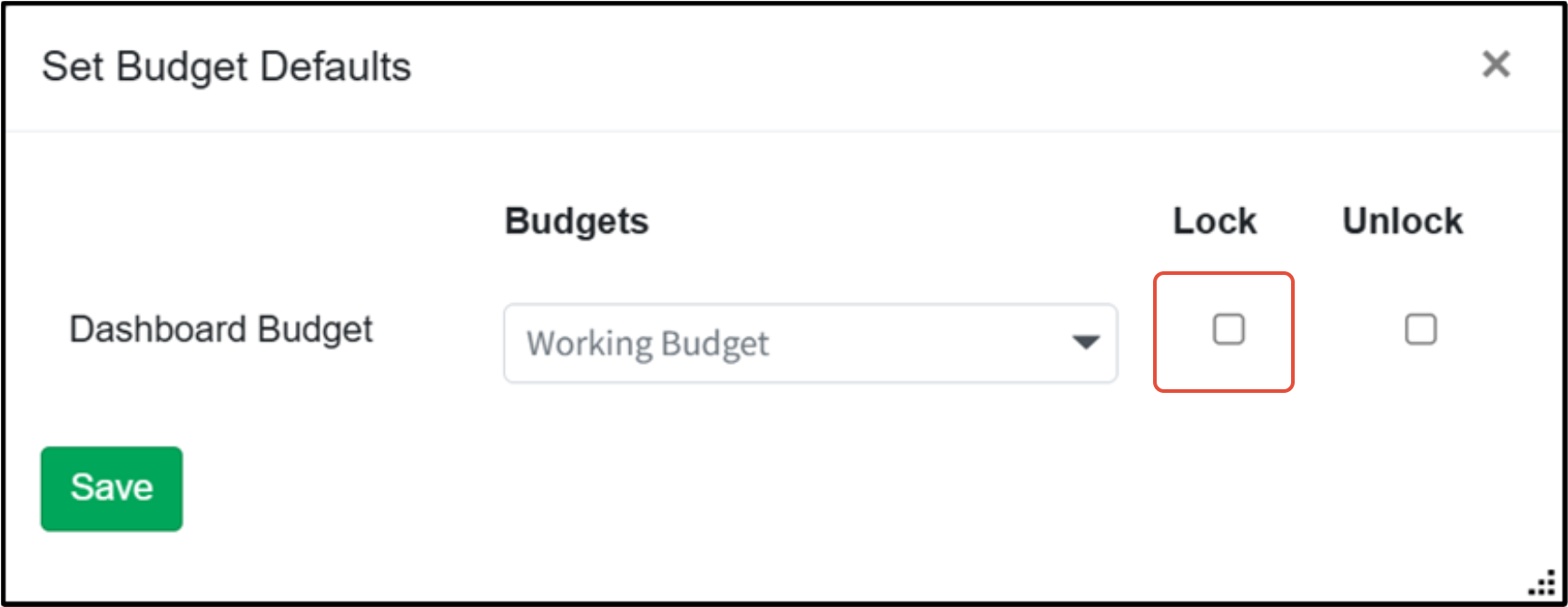
- Select Lock to ensure all worksheets in the budget cannot be unintentionally changed.
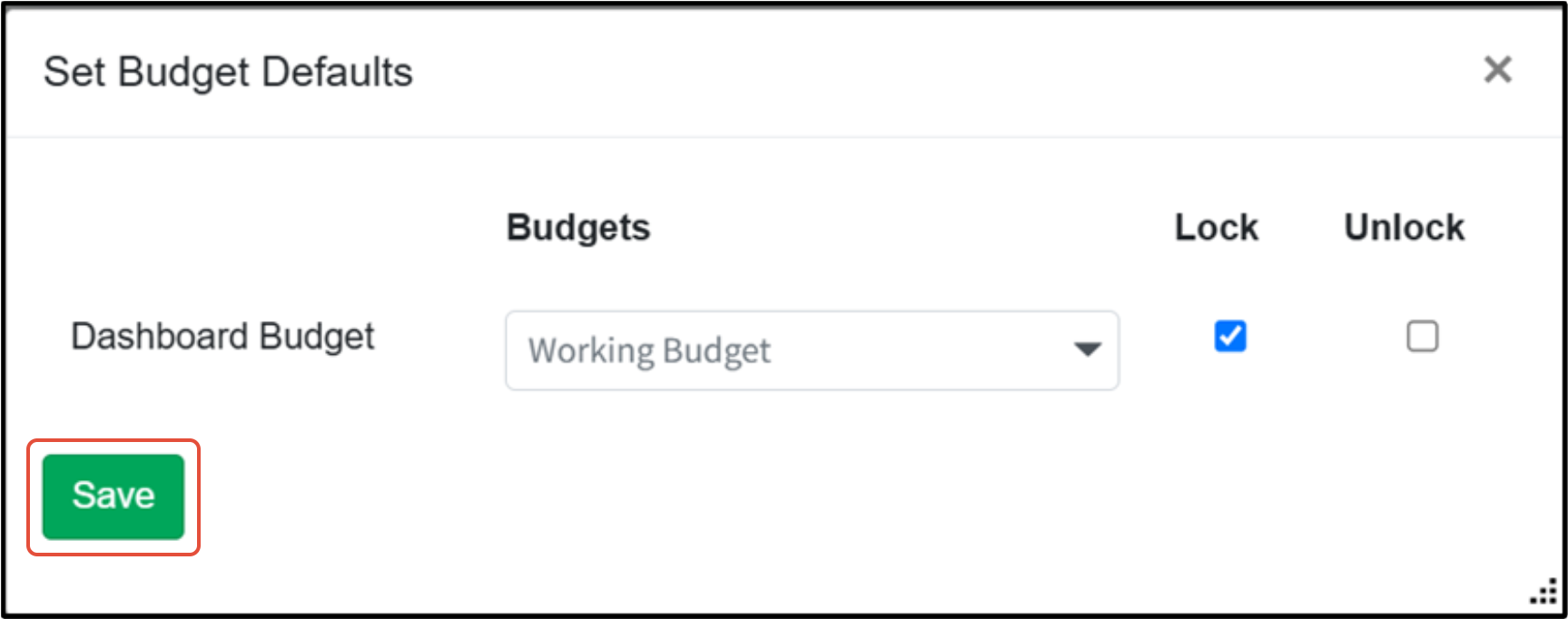
- Click Save.
Was this article helpful?
That’s Great!
Thank you for your feedback
Sorry! We couldn't be helpful
Thank you for your feedback
Feedback sent
We appreciate your effort and will try to fix the article