Setting Up Payroll Taxes - Choose the Right Method
There are two methods of calculating the employer responsibility for payroll taxes. Use only one of these methods to avoid doubling the payroll tax.
Use the Annual Setup tab for calculating payroll taxes if both of these are true:
- You use a single GL account for both Social Security and Medicare.
- You have no employees whose compensation is high enough to be affected by the Social Security tax cap, or if the difference that this would make in your budget is minimal enough that you wish to disregard it. (The Social Security tax cap is set by the IRS each year.)
Use Pay Types for calculating payroll taxes if either of these are true:
- You use separate GL accounts for Social Security and Medicare.
- You have employees affected by the Social Security tax cap and you want to budget more precisely for the effect on employer payroll tax.
Note: This document is written from the perspective of US payroll tax requirements. Martus also supports payroll tax methods in other countries. The Annual Setup method is of limited usefulness outside the US, but the pay type method is very flexible and supports a wide variety of payroll tax requirements. Martus Support can help to configure pay types for payroll tax needs in countries outside the US.
Using Annual Setup for Payroll Taxes
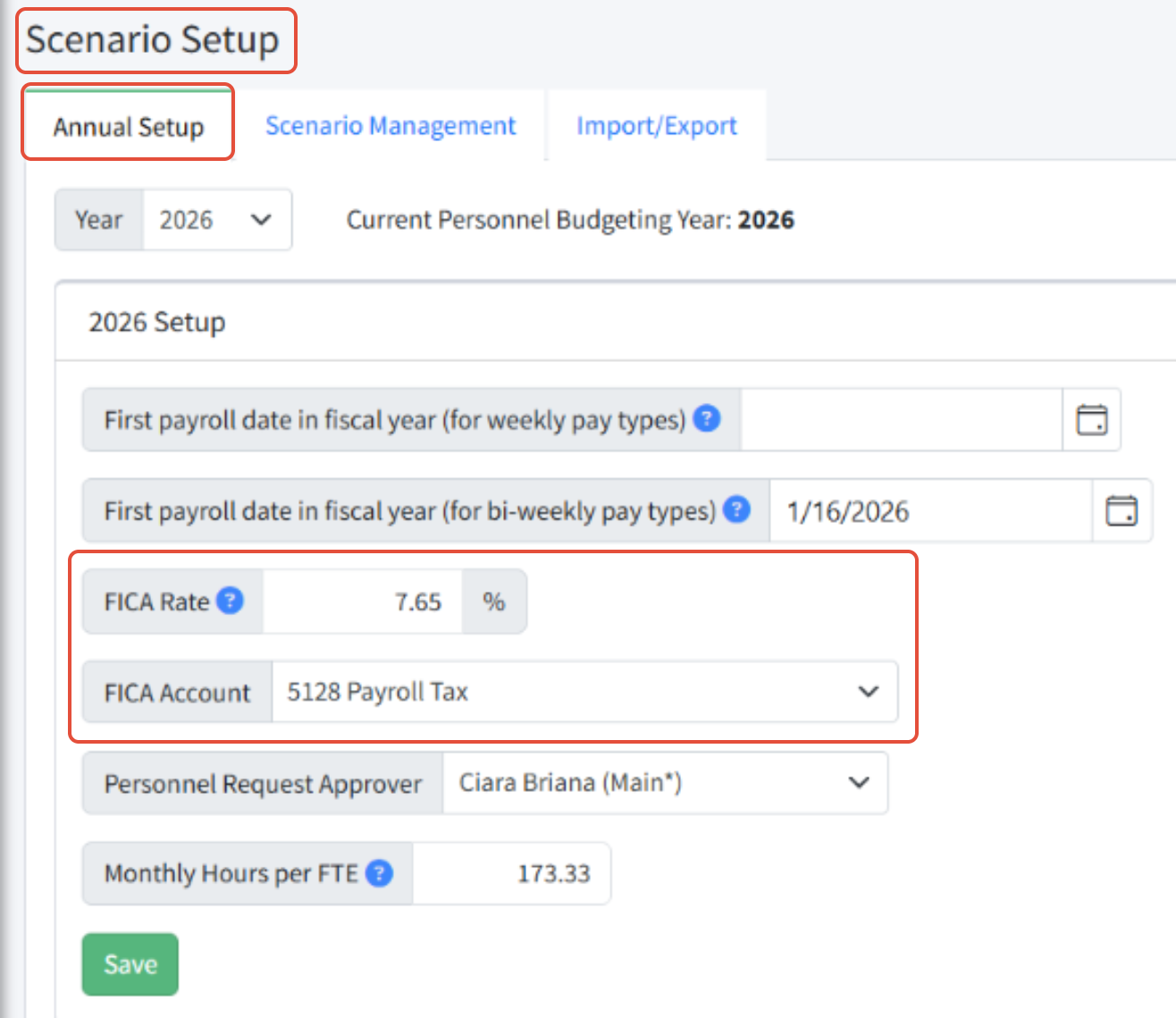
Set the FICA Rate and FICA Account
- Navigate to Personnel Budgeting > Scenario Setup > Annual Setup. Enter the FICA Rate and FICA Account for the fiscal year.
- Slick Save.
Set Pay Types as Taxable
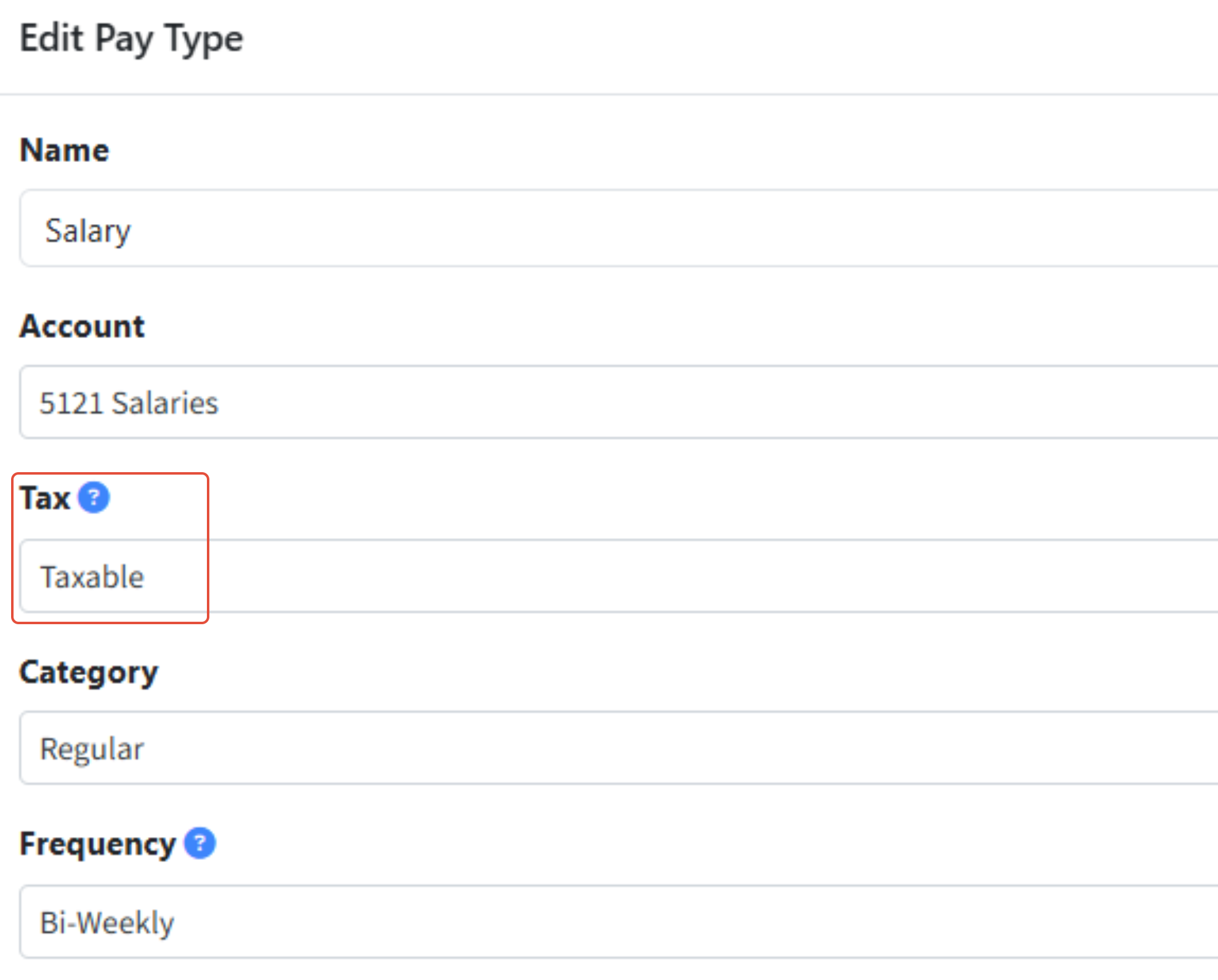
Taxable pay types use the Annual Setup settings to calculate payroll taxes.
- Navigate to Personnel Budgeting > Personnel Budgeting Setup > Pay Types.
- Set the Tax setting on each pay type to Taxable.
Using Pay Types for Payroll Taxes
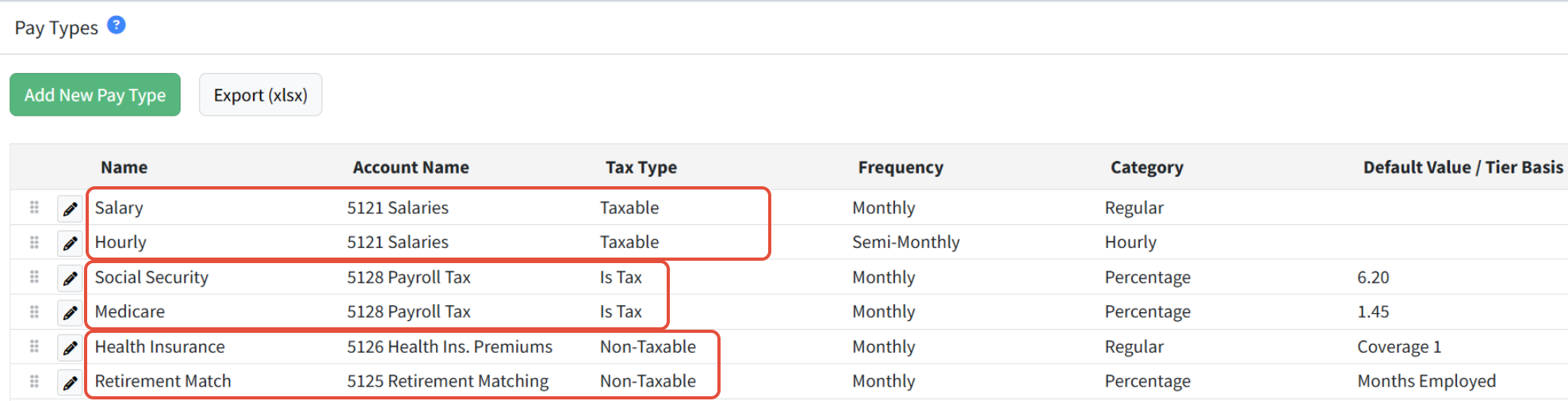
Separate pay types for Social Security and Medicare are assigned to taxable positions in a scenario.
Each tax pay type is associated with source pay types (such as Salary, Wages, Bonus, etc.) When you assign a payroll tax pay type to a position in a scenario with any or all of these source pay types, the tax amount is calculated automatically. If you change the rate for any of the source pay types on that position, the payroll tax amounts are updated automatically.
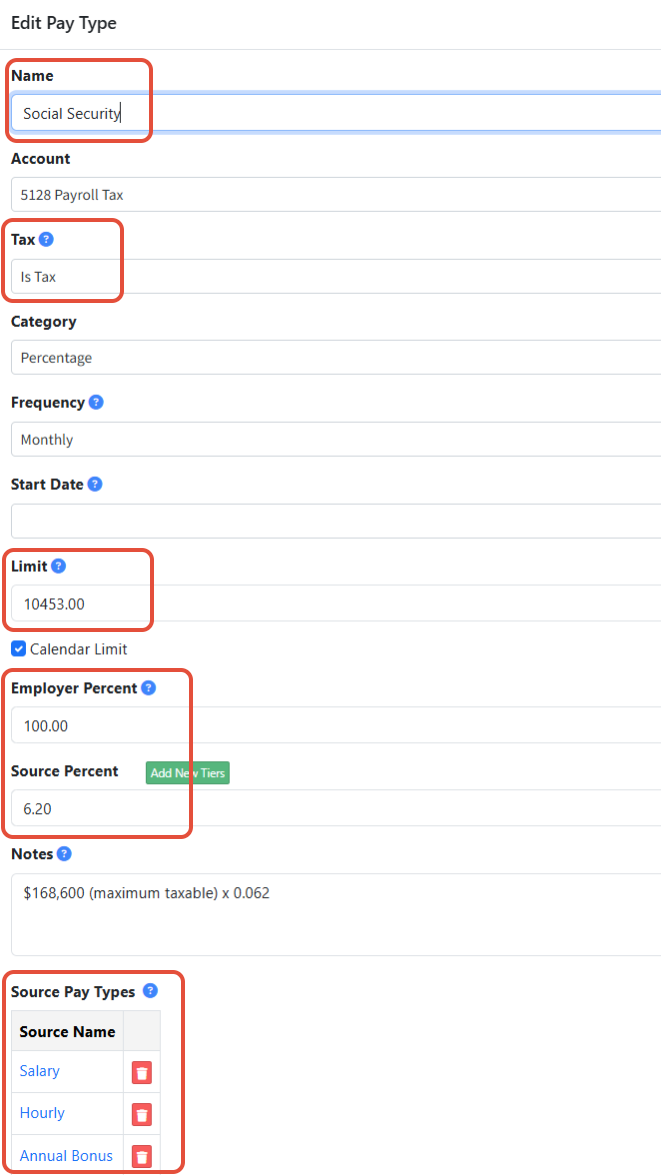
Below is an example pay type for calculating Social Security taxes, using the cap. Additional information on Pay Types can be found in the knowledge base.
Notes:
- When you use the Annual Setup method, payroll taxes are not shown on Positions or Detail in Personnel Budgeting > Scenarios.
- View payroll taxes on the Summary (Post to Budget) report. Use the Show Taxes flag to hide/show taxes.
- When you post a scenario to a budget, payroll taxes are always included.
- When you use pay types for payroll taxes, the Taxable flag on positions is ignored.
- Whether you use either method, be sure to review the accounts, rates and limits each year, in preparation for budget season.
Was this article helpful?
That’s Great!
Thank you for your feedback
Sorry! We couldn't be helpful
Thank you for your feedback
Feedback sent
We appreciate your effort and will try to fix the article