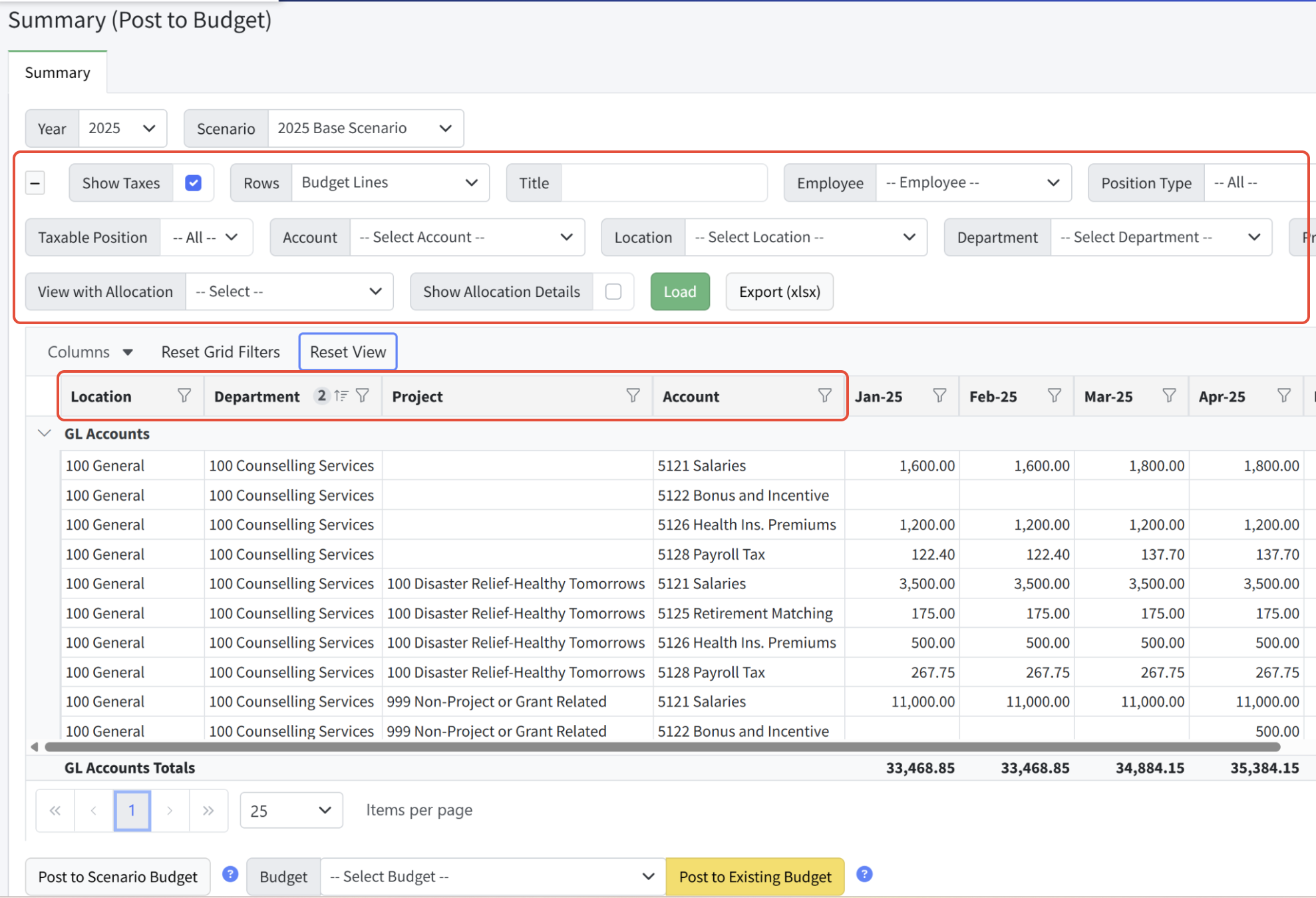
The Summary (Post to Budget) page displays all budget lines that exist in the scenario and allows for posting those lines to a budget. This consolidated view of personnel data can be filtered as needed. Any scenario must be manually posted by a Martus Admin via the Summary (Post to Budget) page to a planner budget. A default allocation is automatically selected and loaded if available.
Posting a scenario to a budget requires the following steps, given in greater detail below.
- View the Scenario
- Filter the scenario lines as needed to review what will be posted to the budget.
- Be sure the appropriate allocation is applied in Personnel Budgeting > Scenarios > Summary. A default allocation will be automatically applied.
- Prepare to Post the Scenario
- Ensure the budget isn't set as the Dashboard budget
- Click Post to Scenario Budget in Personnel Budgeting > Scenarios > Summary. Compare the scenario budget and the Planner budget in Planner > Summary.
- Post the Scenario to the Budget
- Click Post to Existing Budget after selecting the desired budget in Personnel Budgeting > Scenarios > Summary to post the scenario lines to the budget.
- Choose whether to round the scenario or delete unused lines in the budget.
View the Scenario
Filtering and Viewing
The Summary (Post to Budget) page allows for filtering in both the criteria above and the column filters on individual columns. Note that statistical accounts are not included in totals with GL accounts. You can filter the Pay Type criteria to adjust which pay types are shown.
When posting the scenario to a budget, all lines are posted, regardless of what lines are showing per applied filters.
Viewing an Allocation
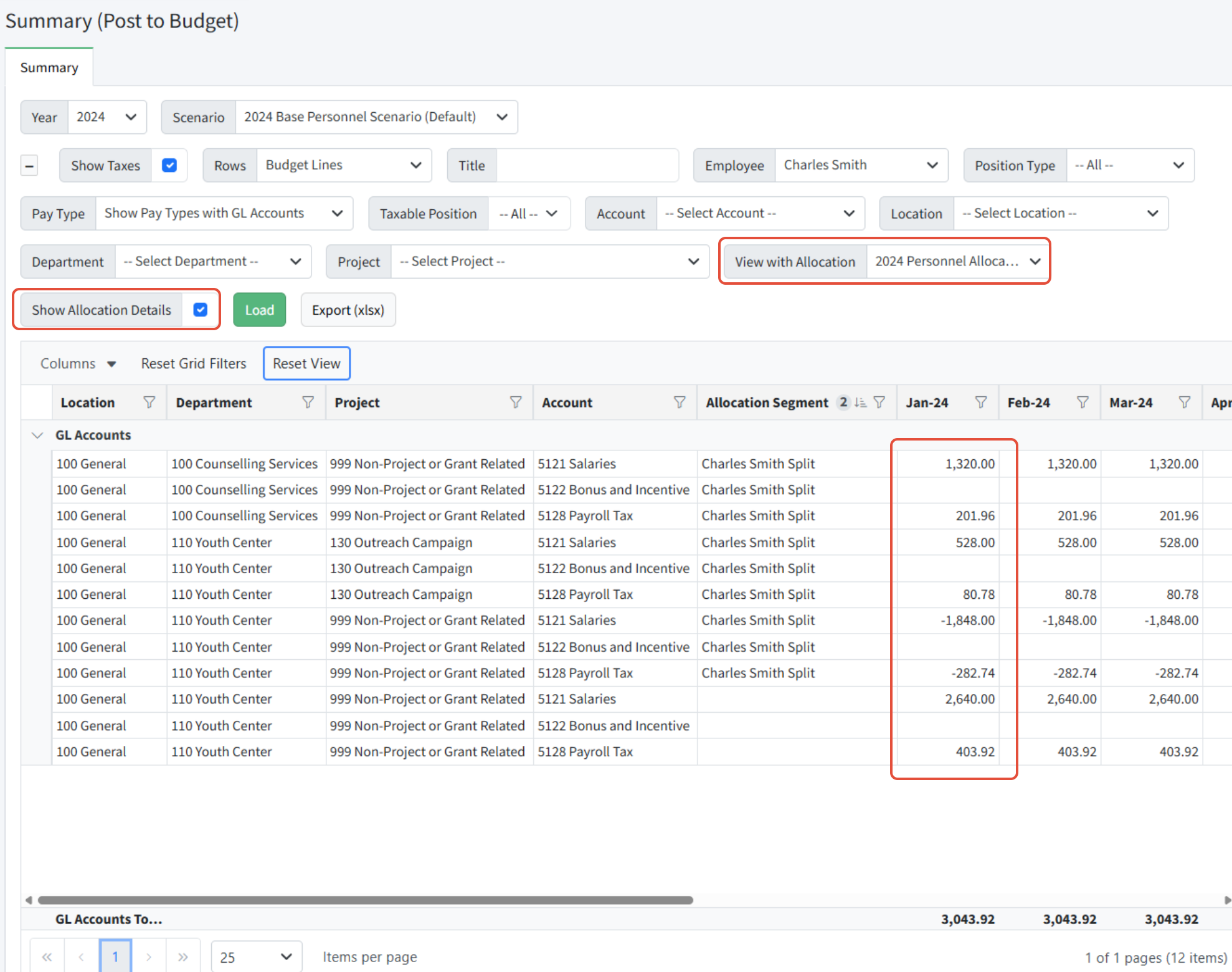
If you have personnel allocations, the default allocation is automatically selected and loaded. Select another allocation from the dropdown and click Load if desired. When using an allocation, the Show Allocation Details option will provide lines for each allocation displaying the debits and credits that result from that allocation's application.
Prepare to Post the Scenario
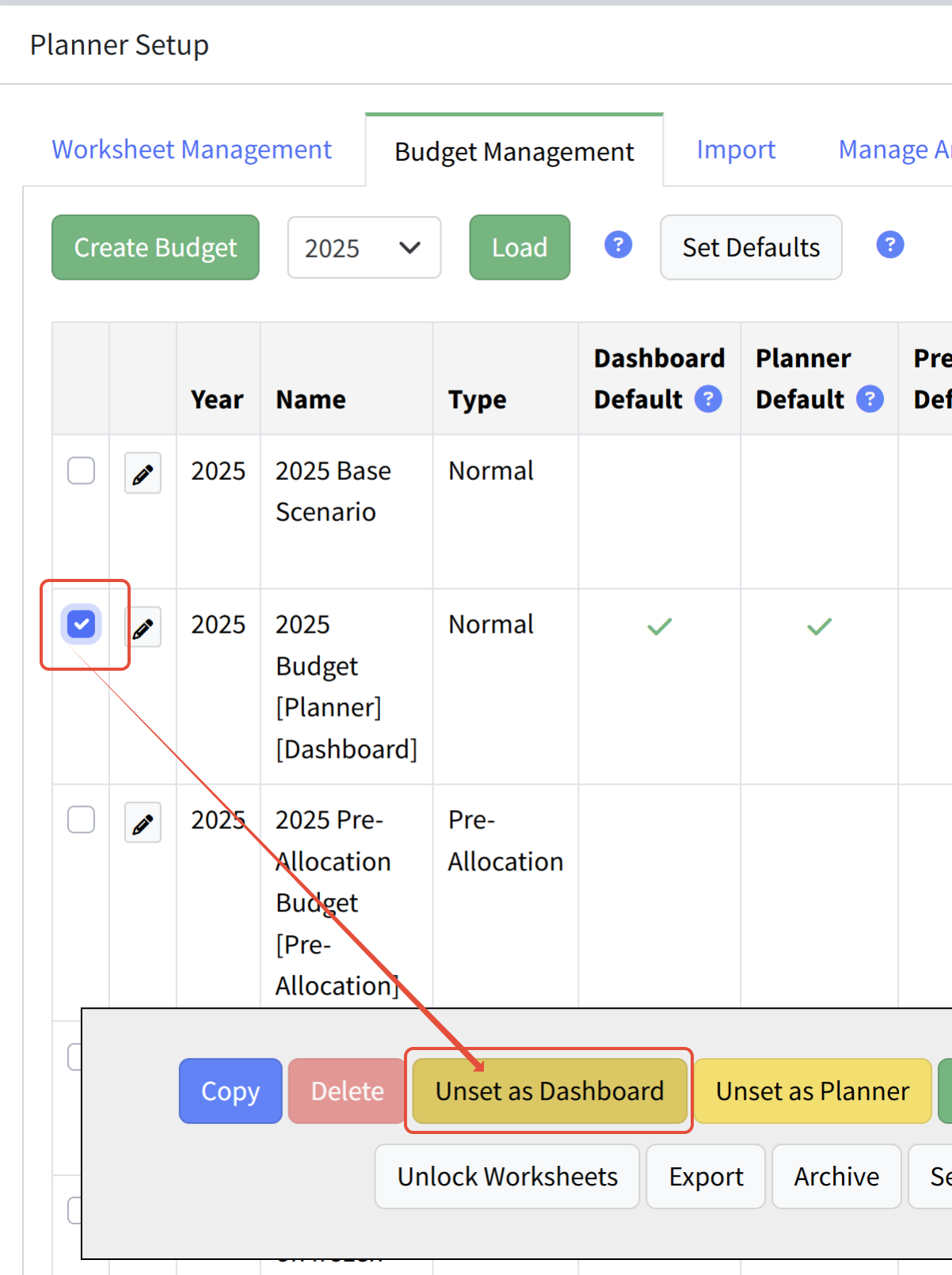
Unset the Dashboard Budget
The budget selected cannot be the Dashboard default budget. Only budgets that are complete and no longer being edited should be set as the Dashboard reporting as that status indicates that the budget is ready for reporting budget to actuals.
Viewing the Scenario as a Mini-Budget
It is important to review the personnel summary lines before posting to one of the existing Planner budgets. You can do this by posting to a "scenario budget." This will create a mini-budget in Planner with the same name as the scenario.
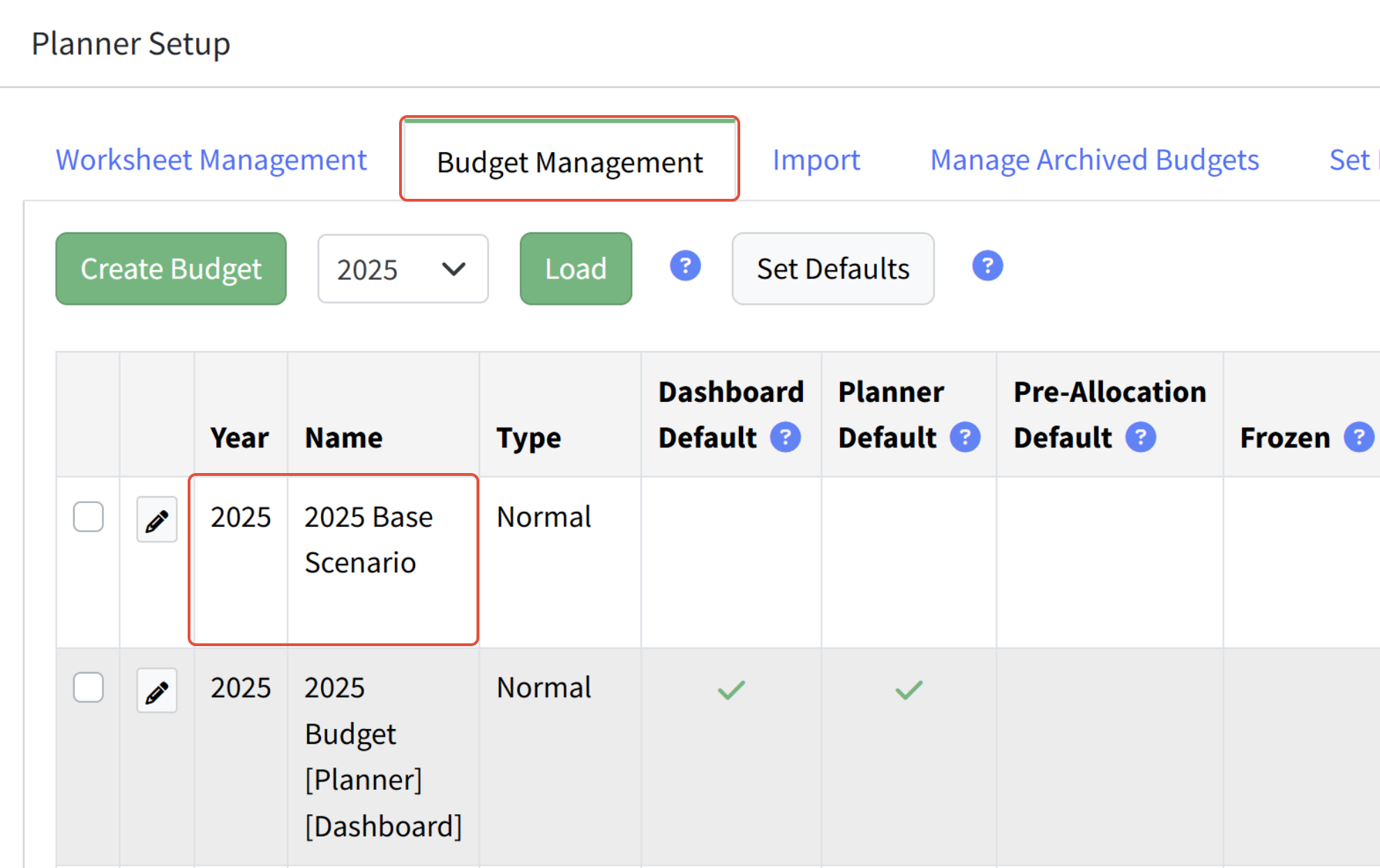
- Navigate to Personnel Budgeting > Summary (Post to Budget).
- A default allocation is automatically selected and loaded if available.
- Scroll to the bottom of the screen.

- Click Post to Scenario Budget (Review the blue question mark for more detailed on-screen help).
- Martus creates a budget for this personnel scenario in Planner to review and compare in reports there.
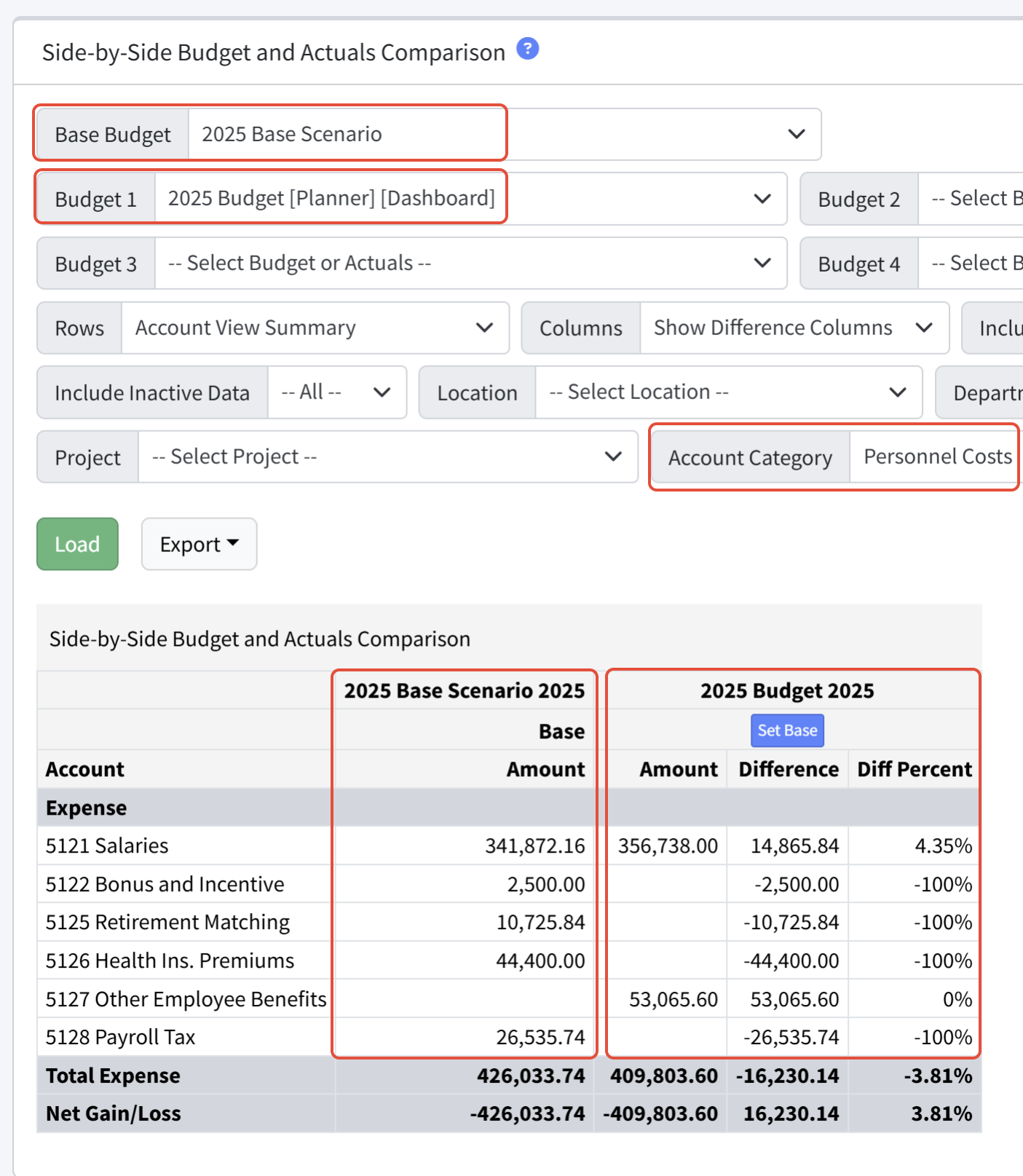
Best practice is to review and compare the scenario budget and the Planner budget using the reports in Planner > Summary (especially the Side-by-Side Budget and Actuals Comparison report). Once the scenario budget is confirmed, you are ready to post the scenario to an existing Planner budget.
Post the Scenario to the Budget
When posting to an existing budget, all budget lines in the personnel scenario will be posted to the budget. If the scenario was previously posted, it will replace existing lines in the budget, and any new lines will be added.
Posting options:
- Rounding: When posting you can choose to round the budget to the nearest dollar, tens, hundreds, or thousands. Once posted, Martus will add to the note within the budget line that the scenario was rounded and at one lvel.
- Delete lines: When posting to your Planner budget, Martus gives you the option to remove unused lines that are associated with the Accounts used in Personnel but are no longer tied to a specific line. For example, last year you budgeted salaries to dimensions A, B, and C, this year, you are only using dimensions A and B. However, since you copied last year's budget to this year, the salaries in dimension C exist in your budget. The delete option will remove the line for salary in dimension C.
Note: An archived copy of the budget you select is automatically created prior to posting the scenario, and can be found in Planner > Planner Setup > Manage Archived Budgets with the name of the budget appended to "Prior to Personnel Posting", with the date.
- Navigate to Personnel Budgeting > Summary (Post to Budget).
- A default allocation is automatically selected and loaded if available.
- Scroll to the bottom of the screen.
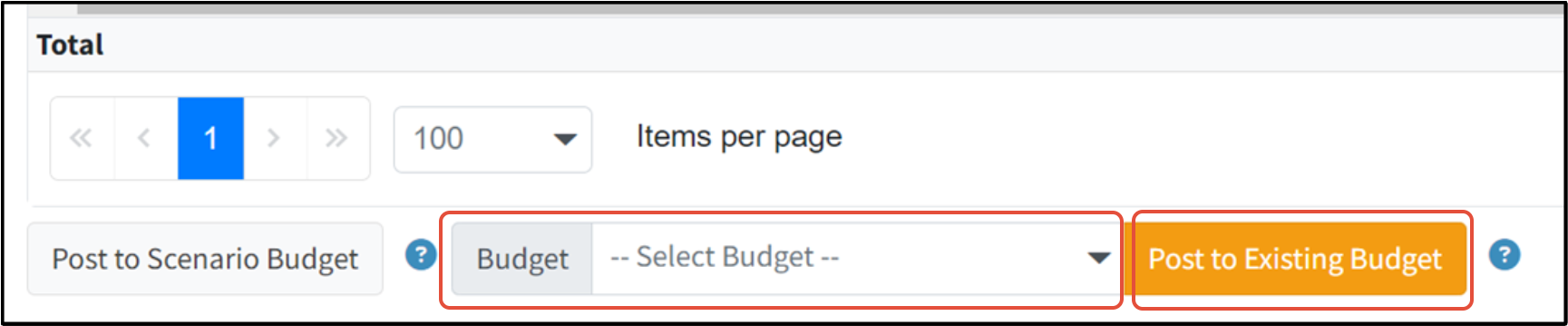
- Select the Budget to post the scenario budget to.
- Click Post to Existing Budget.
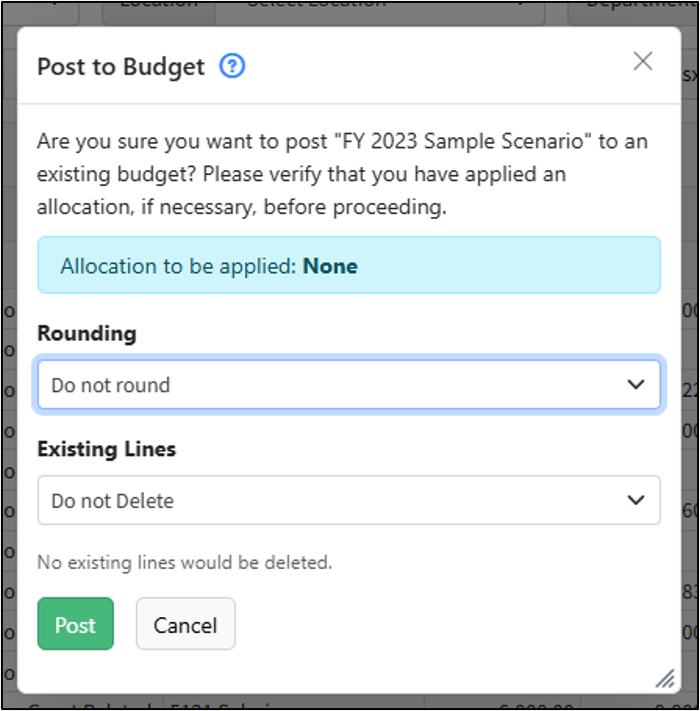
- Choose the appropriate Rounding option (see below for details).
- Choose whether to remove Existing Lines. Removing existing lines will delete all lines from the existing budget for those the accounts affected.
- Click Post.
Important Notes
- When you post a scenario, it will update all worksheets in the budget, whether they are locked or not.
- Worksheet lines posted from a scenario budget will assume the status of the worksheet. If the worksheet is unlocked, then the scenario lines can be edited by the user.
- Personnel only adds or updates lines within a budget by default, it will only remove lines associated with the GL Accounts used in personnel if you select "Remove lines" when posting.
- A note is added to each amount on the line posted to by a scenario for that worksheet so that the user can easily tell which lines were posted to and which scenario was used when posting to the Planner Budget. In order to identify which scenario has been posted to a Budget, open a worksheet that contains personnel lines and view the line note.

- Only Admins can post a personnel summary to a Planner Budget.
- ALL lines of the scenario will be posted regardless of what filters are applied on the Summary screen.
- Scenarios will not post to frozen months in the Planner Budget.
- It is possible to compare multiple Scenarios via the Post to Scenario budget option. Simply post multiple Scenarios from either the same fiscal year, or multiple fiscal years to their own Scenario budgets. Then go to Planner > Summary and navigate to the Side by Side Budget & Actual Comparison report to select the various Scenario budgets that should be compared. This method allows for a year-over-year analysis of Personnel Costs.
- If the Summary Tab is not showing any amounts, it is recommended to navigate to the Detail tab and ensure it is populated; if not, use the option to Recalculate/Return to Original Rates.
Was this article helpful?
That’s Great!
Thank you for your feedback
Sorry! We couldn't be helpful
Thank you for your feedback
Feedback sent
We appreciate your effort and will try to fix the article