Personnel Reports
Positions & Pay Report
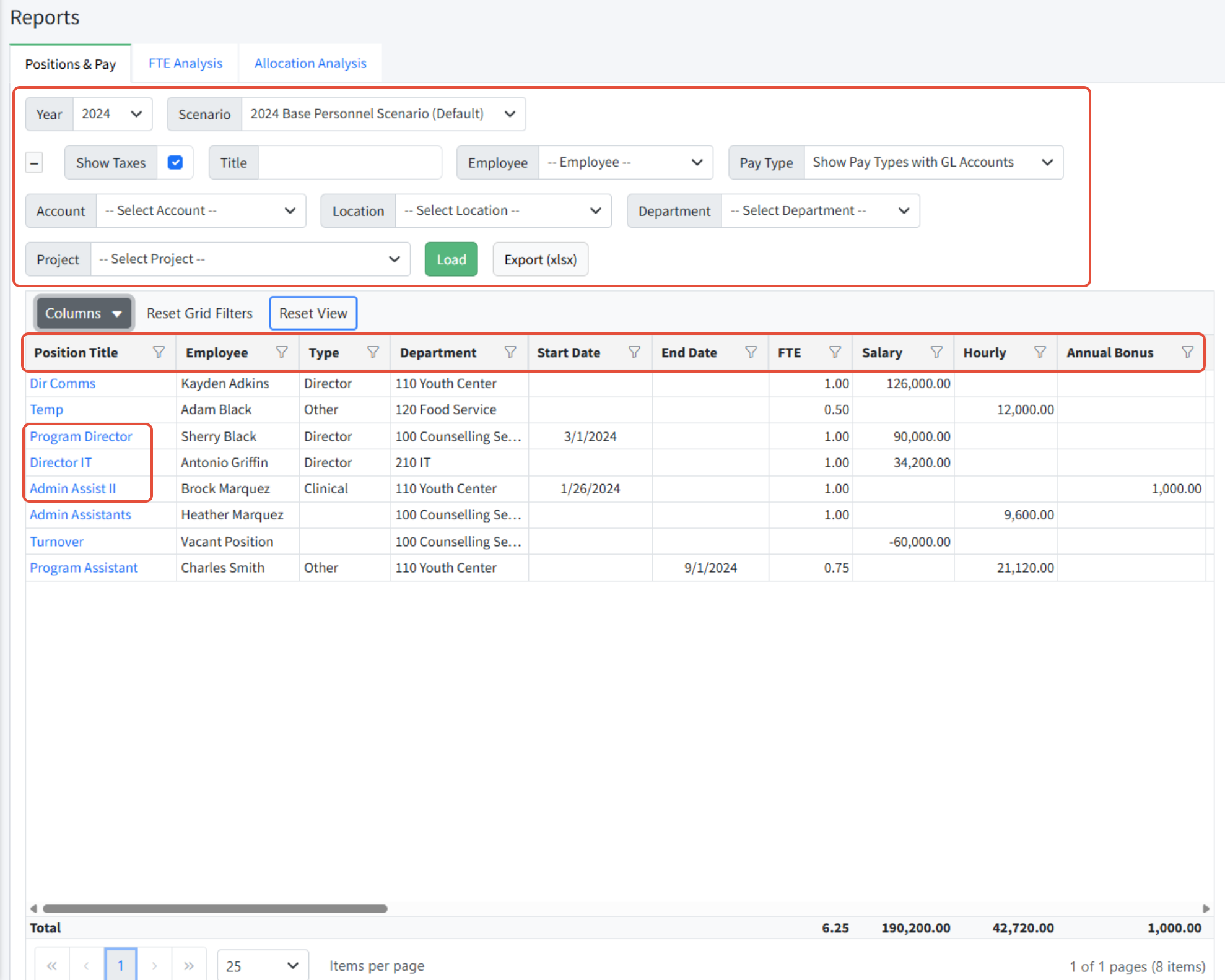
The Positions & Pay report in Personnel Budgeting > Reports provides a summary of all positions in the scenario with a single line for each position. The report provides columns for the position details such as dimensions and title, as well as a column for every pay type that is used in the scenario. A position may be edited from the Positions & Pay report by clicking on the Position Title link.
A particular cell - a combination of row and column - that is blank, indicates that the setting or pay type is not in scope for that position.
The Positions & Pay report can be filtered using the page filters at the top, or by using the grid filters. Note that the grid filters on the Positions & Pay report are not sticky - they will reset if you leave the screen and come back. This incudes the Columns as well. (This is due to the complexity of the data being presented. Other grids in Martus will stay sticky.)
The Positions and Pay report can also be exported to Excel.
Notes:
- The grid filters on the Positions & Pay report are not sticky - they will reset if you leave the screen and come back. This incudes the Columns as well. (This is due to the complexity of the data being presented. Other grids in Martus will stay sticky.)
- If using the FICA option via the Personnel Budgeting > Scenario Setup > Annual Setup tab, there will be a column for Tax to the far right of this report.
- Currently, allocations are not considered in the Positions and Pay report.
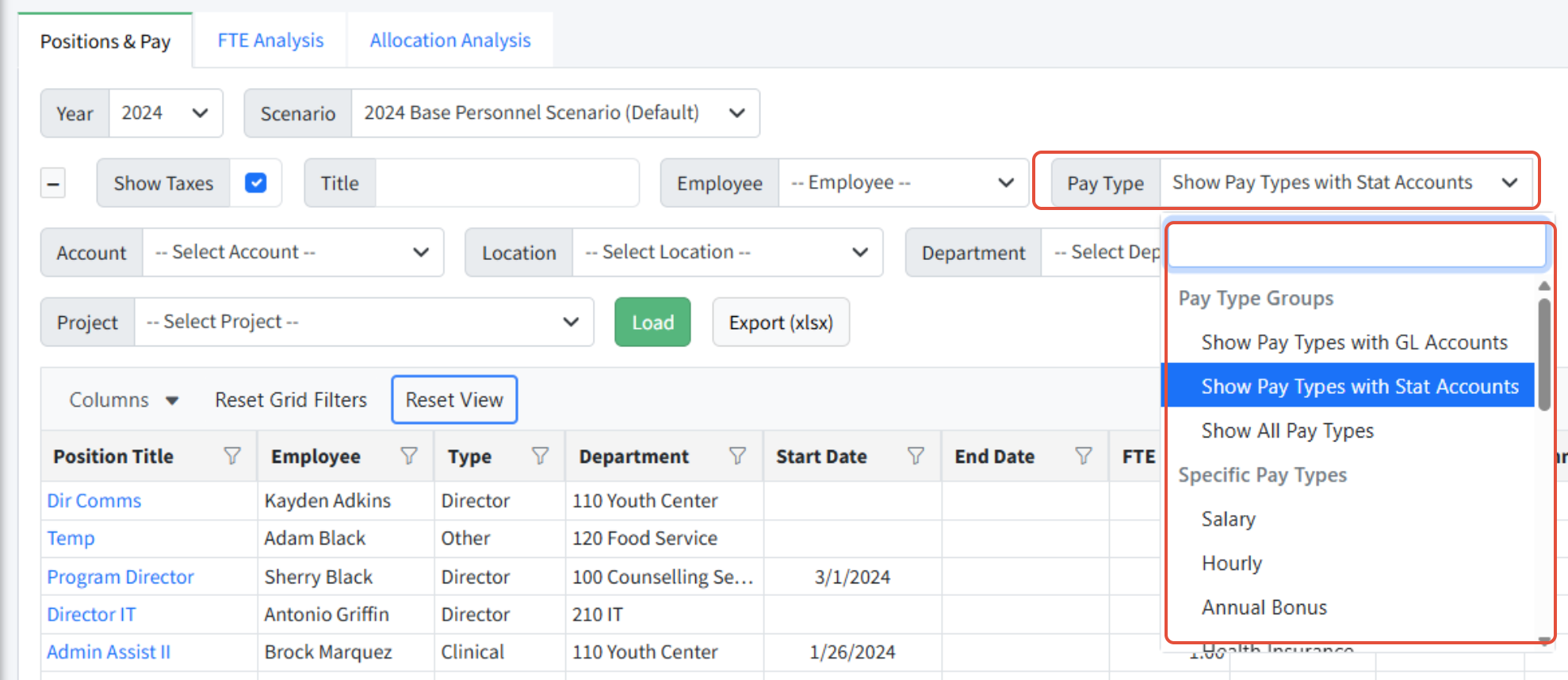
- If statistical accounts are in use, they are not included in totals with GL accounts. They can be viewed separately when Pay Type is set to Show Pay Types with Stat Accounts.
FTE Analysis Report
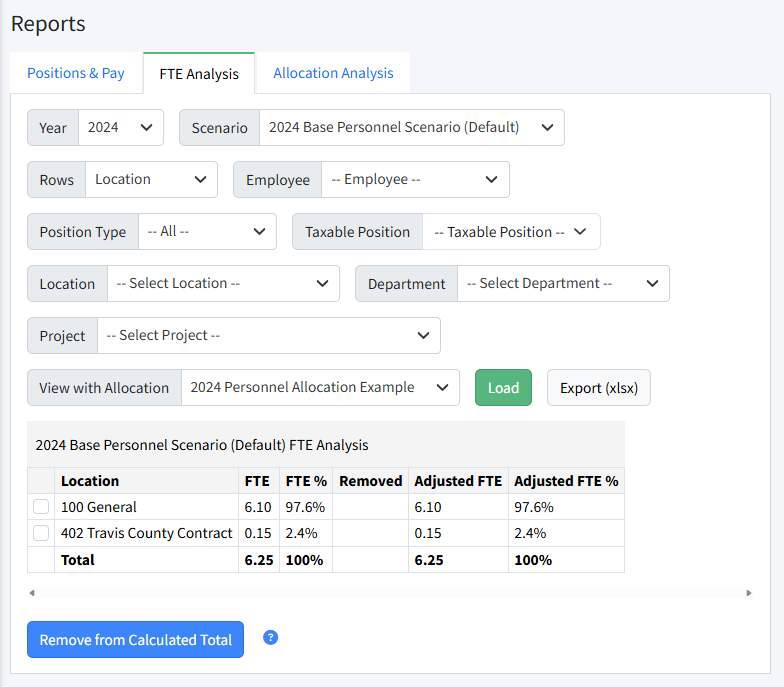
The FTE Analysis report in Personnel Budgeting > Reports provides a summary of Full Time Equivalents by dimension for the selected scenario.
Any dimension in the system can be used as a grouping on the rows. Use the check boxes and Remove from Calculated Total to temporarily filter on dimension values. Personnel allocations can be applied as needed.
FTE Analysis Report Filters and Actions
- Rows - Select any dimension by which to group FTEs.
- Employee - Select a specific employee to see FTEs across positions assigned to that employee.
- Position Type - Filter to a position type.
- Taxable Position - Filter to taxable positions using No, Yes, or All.
- Dimension Filters - Filter to specific dimensions.
- View with Allocation - Automatically displays the default allocation, and can be changed to view another.
- Load - Load the current selected filters.
- Remove from Calculated Total - Use the check boxes and then click Remove from Calculated Total to filter the analysis to specific dimensions values. Click Load to reset to all dimension values.
- Export (xlsx) - Export the current FTE Analysis.
View FTE with Specific Dimension Values
To filter the view, follow these steps.
- Navigate to Personnel Budgeting > Reports > FTE Analysis.
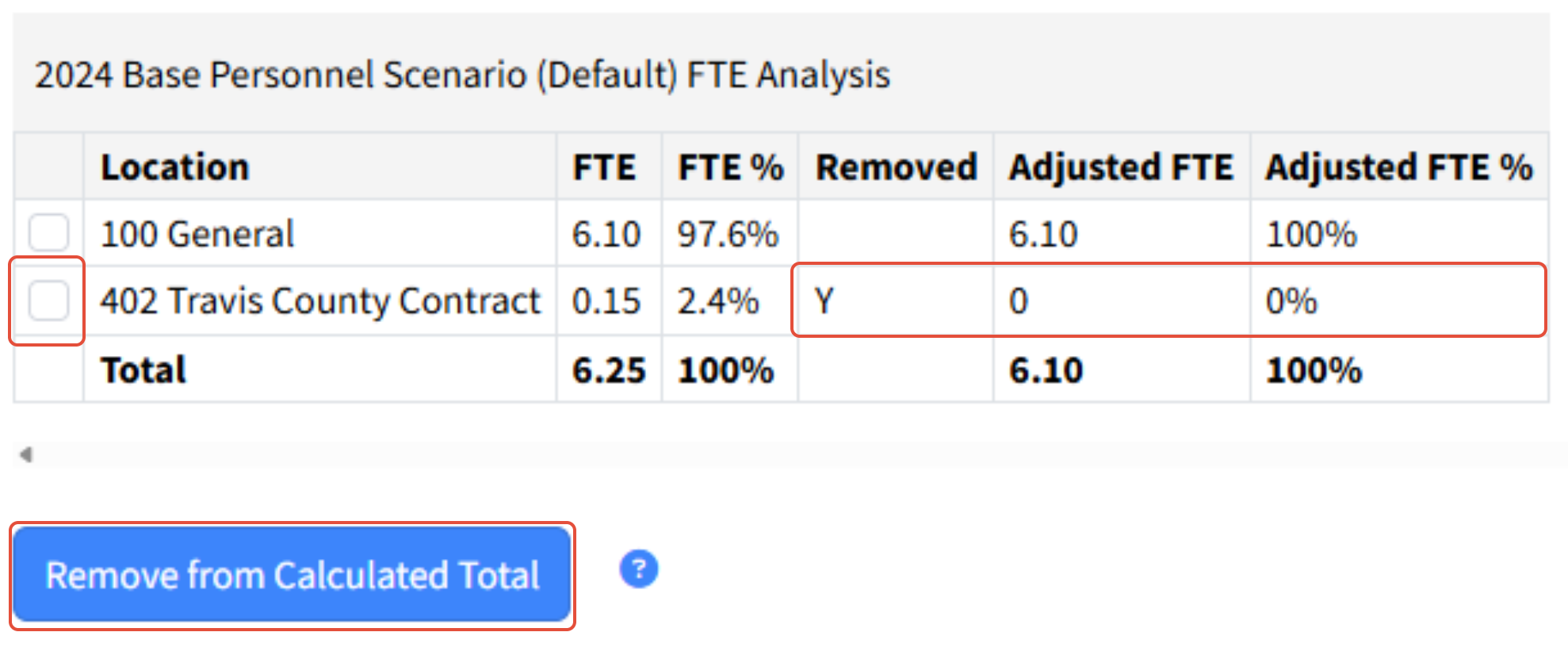
- Select one or more dimension values to remove using the check boxes on the lines.
- Click Remove from Calculated Totals.
- This will adjust the remaining dimension percentages as appropriate. You will notice the Adjusted FTE amounts and % will update, based on the split between the remaining dimensions.
- Click Load to bring back all dimension values and reset the Adjusted FTE calculations.
Allocation Analysis Report
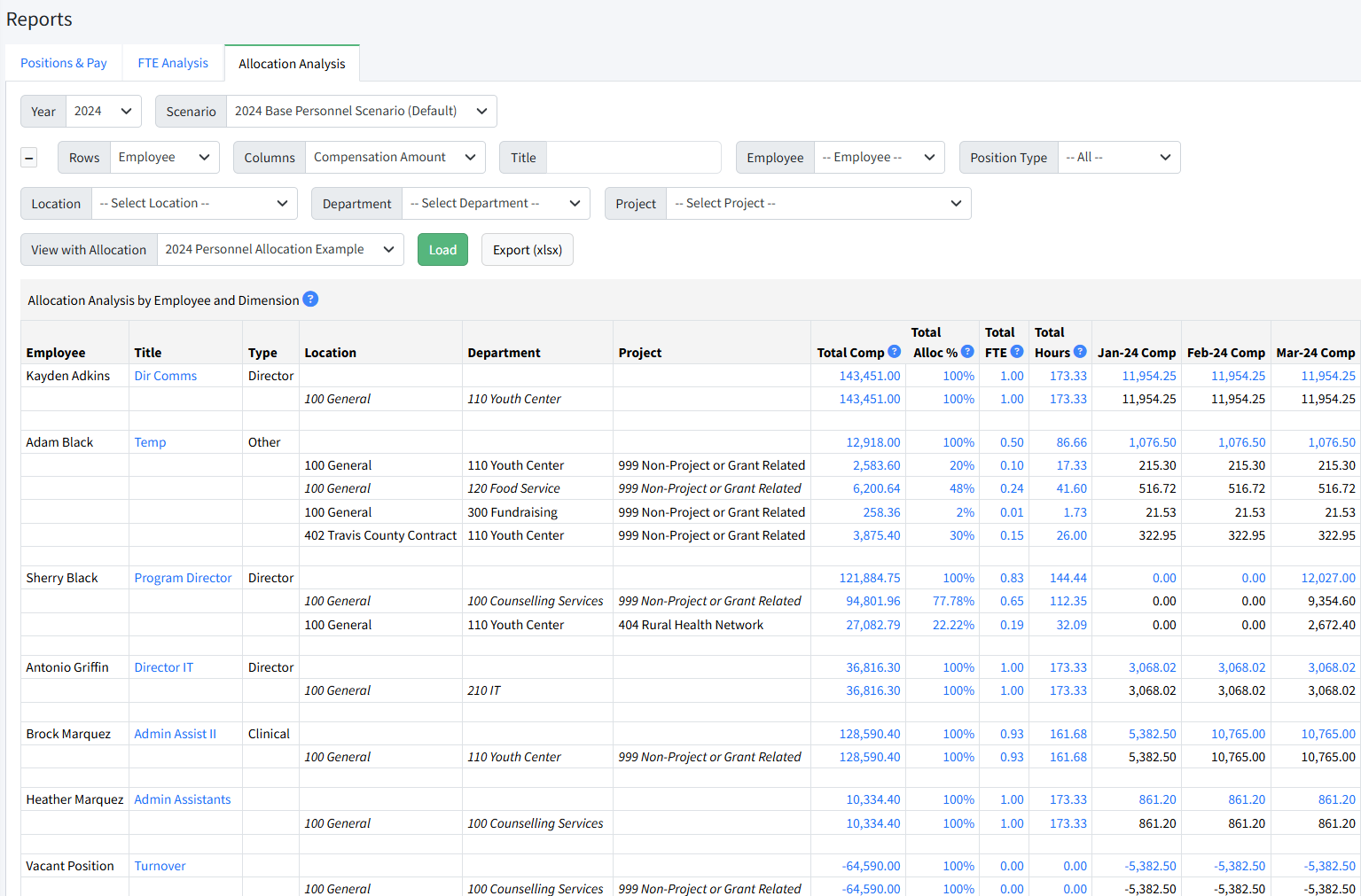
The Allocation Analysis report in Personnel Budgeting > Reports displays employees and dimensions on rows and can display the dollar amounts, FTE counts, percentages, or hours by month depending on how the report criteria are set.
A default allocation is automatically displayed for the current budget year. Select an alternate allocation from the dropdown View with Allocation and click Load if desired.
Report Criteria
A variety of filters are available on the Allocation Analysis report.
Rows - Determines how the rows are grouped.
- Employee - Displays each employee, and the dimensions associated with each segment allocation.
- Dimension - Displays each combination of dimensions, and the employees and allocation segments associated with each combination.
Columns - Determines the columns that are displayed.
- Compensation Amount - Annual and monthly compensation amounts are displayed.
- Percentage - Annual compensation and percentage of total annually and per month are displayed.
- FTE - Annual compensation and total FTEs annually and per month are displayed.
- FTE & Monthly Hours - Annual compensation, FTE and Hours annually and per month are displayed.
Filters - Filters are available for Title, Employee, Position Type, and all dimensions.
Note: If statistical accounts are in use for any pay types, they are not included in totals with GL accounts.